

The company panel
How the INTEGALL company panel is organised and how to find your way around quickly.
The company panel is the office's workplace: planning, trips, customers, invoicing, fleet, staff, reports and settings. You open it on company.integall.com in a normal browser (Chrome, Edge, Firefox or Safari), on a computer, tablet or phone.
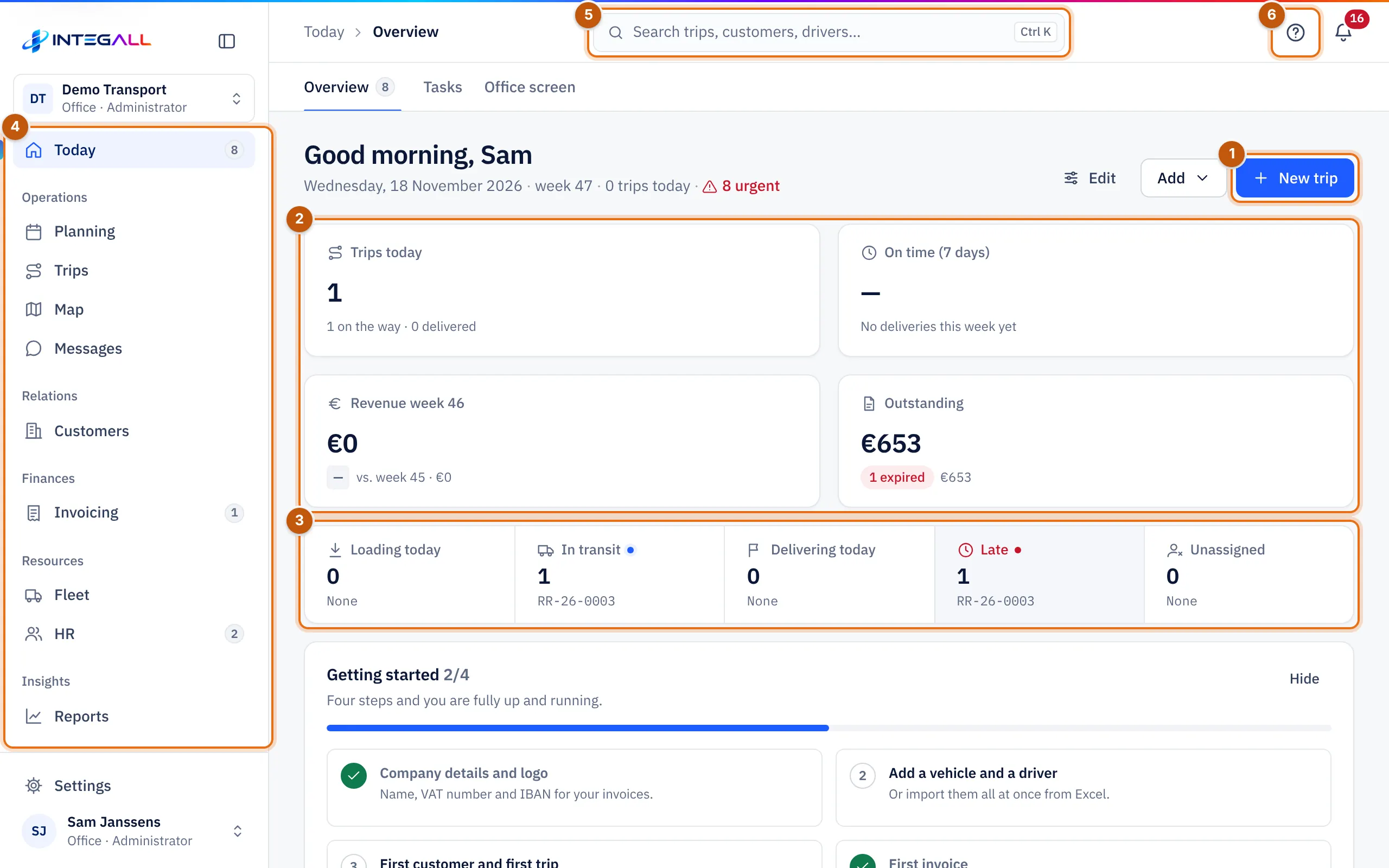
The screen layout#
- Navigation on the left: the main sections, grouped by area: Today, then Operations (Planning, Trips, Map, Messages), Relations (Customers), Finances (Invoicing), Resources (Fleet, HR) and Insights (Reports). Settings is at the bottom.
- Company switcher at the top left: your company's name with your role. If your account works for several companies, choose Choose another company here.
- Tabs: every main section has tabs. Under Trips, for example, you find All trips, Incidents, Containers, e-CMR, eFTI and eFTI register.
- Top bar: the breadcrumb, the search bar, the help button and the notifications.
- Your account at the bottom left: language, Night mode, Help and manual, Classic view and Log out.
A number next to a section shows how many items need your attention, for example urgent tasks or overdue invoices.
Search and open quickly#
The search bar at the top (Search trips, customers, drivers…) searches trips, customers, drivers and vehicles. Press Ctrl + K (on a Mac ⌘ + K) to jump to it.
Help in the app#
On every page, the question-mark button opens a help panel explaining that page. From there you can restart the Tour or ask support a question. The help panel also leads to this manual.
On a phone#
On a narrow screen, four buttons appear at the bottom: Today, Planning, Trips and Messages. All other sections are under More, with a search field to find a section quickly.
New panel and classic view#
The company panel uses the new view by default. In your account at the bottom you can choose Classic view. Both views work with the same data and the same permissions. This manual describes the new view; where the classic view still differs, this is mentioned with the section.
Who sees what?#
What you see depends on your role. A planner, for example, does not see invoices or payroll, and Settings is reserved for administrators. More in Team and permissions.