

Today, tasks and office screen
The start screen with the state of the day, the list of internal tasks and the office screen for a large display.
Today is the first screen after sign-in. It has three tabs: Overview, Tasks and Office screen.
Overview#
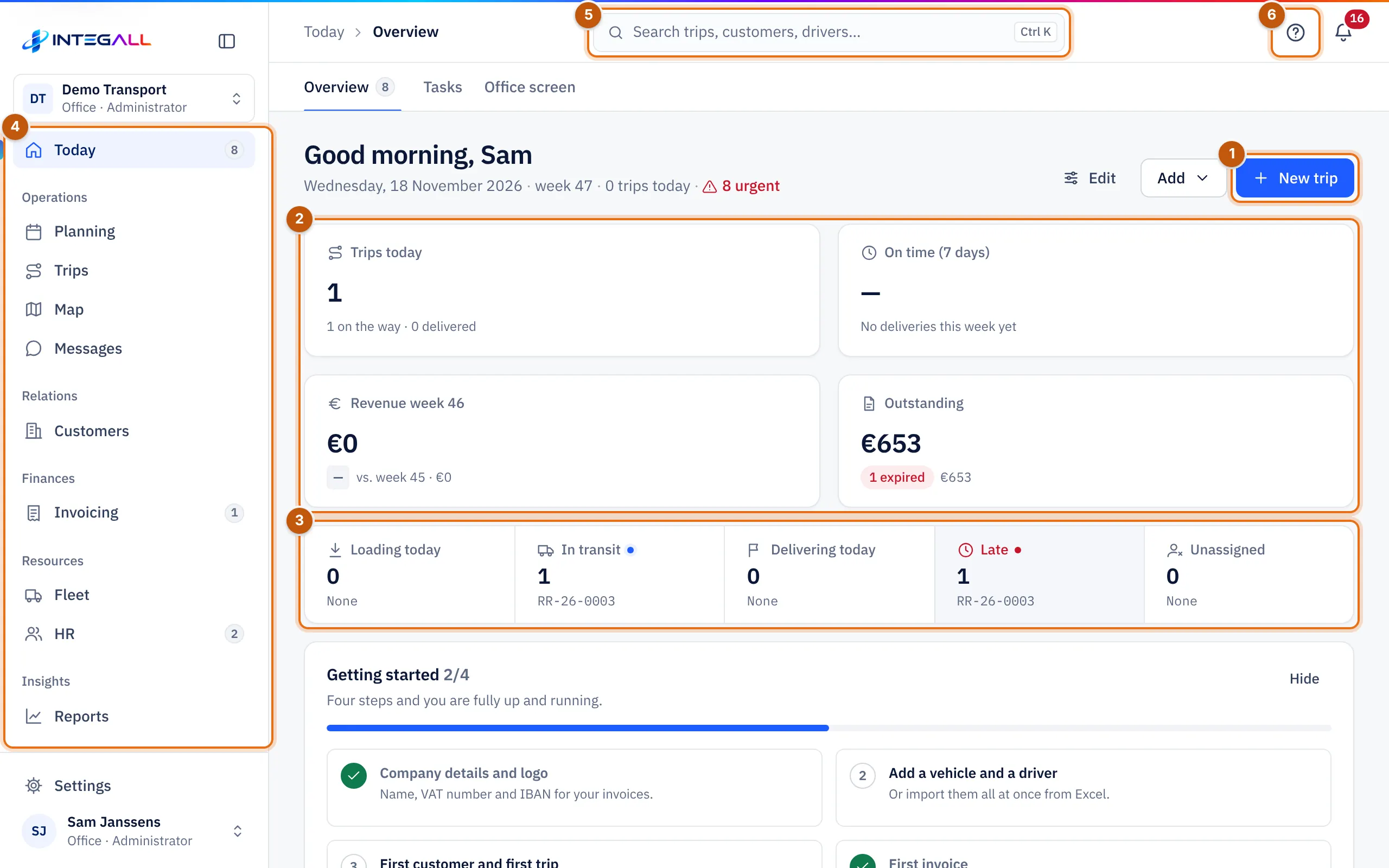
- New trip opens the trip wizard.
- The key figures. Click a card for the details.
- Today's status bar. A click opens those trips.
- The menu with every part of the panel.
- Search trips, customers, drivers, invoices and number plates (also with Ctrl K).
- Help for this page, with a link to this manual.
At the top you see the date, the week and the number of urgent items, with the buttons Edit, Add and New trip. With Add you quickly create an invoice, expense, fine, quote, purchase invoice, damage file or absence.
The cards on the overview:
| Card | What you see |
|---|---|
| Key figures | Trips today, On time (7 days), last week's revenue and the open amount. |
| Status bar | Loading today, In transit, Delivering today, Late and Unassigned. A click opens those trips. |
| Trips today | Today's trips with route, driver, loading time and status. |
| Fleet live | A small map with the trucks; Open live map opens the full map. |
| Today's timeline | Today's trips per vehicle on a timeline. |
| Revenue, trips and costs | A chart over 4 weeks, 12 weeks or 12 months, with Compare with previous period and the revenue target (Set monthly target). |
| Cash flow next 8 weeks | Expected income from invoices and spending on purchases, by due date. |
| Next 7 days | The planned trips per day; Full schedule opens the planning. |
| Needs attention | Late deliveries, expired documents of drivers and vehicles, overdue invoices. |
| Drivers now | Who is on the road and who is free. |
| Open invoices, This month, Tasks | Open amounts, the month so far and the open tasks. |
With Edit you choose which cards you see and in which order; Done finishes editing. The layout is saved in your browser.
A new company sees the card Getting started with four steps at the top; see Account and first sign-in.
Tasks#
Tasks are internal to-dos for the office: call back, request documents, follow up.
- Choose New task.
- Fill in Task and optionally Due (the date), Priority, For whom, the Trip it is about and Notes.
- Save. When the task is done, tick Done.
Filter with Open, For me, Late, Done and All. Tasks with a date within 3 days also appear on the overview. Rules can create tasks automatically, for example for damage; see Notifications and rules.
Office screen#
The Office screen is meant for a large screen in the office or the workshop. It shows the clock, Trips today, In transit, Delivered today, Running late and New requests, a map and the Needs attention. The screen refreshes on its own. Choose Full screen to hide the rest of the panel and Close to go back.