

Invoicing and credit notes
Prepare invoices from delivered trips, finalise and send them, Peppol, credit notes and payment reminders.
Invoicing has these tabs: Sales invoices, Reminders, Purchase invoices, Bank, Accounting and Pallets. This page is about sales invoices, credit notes and reminders. Purchasing, bank and pallets are on Purchases and bank, the export for your accountant on Accounting.
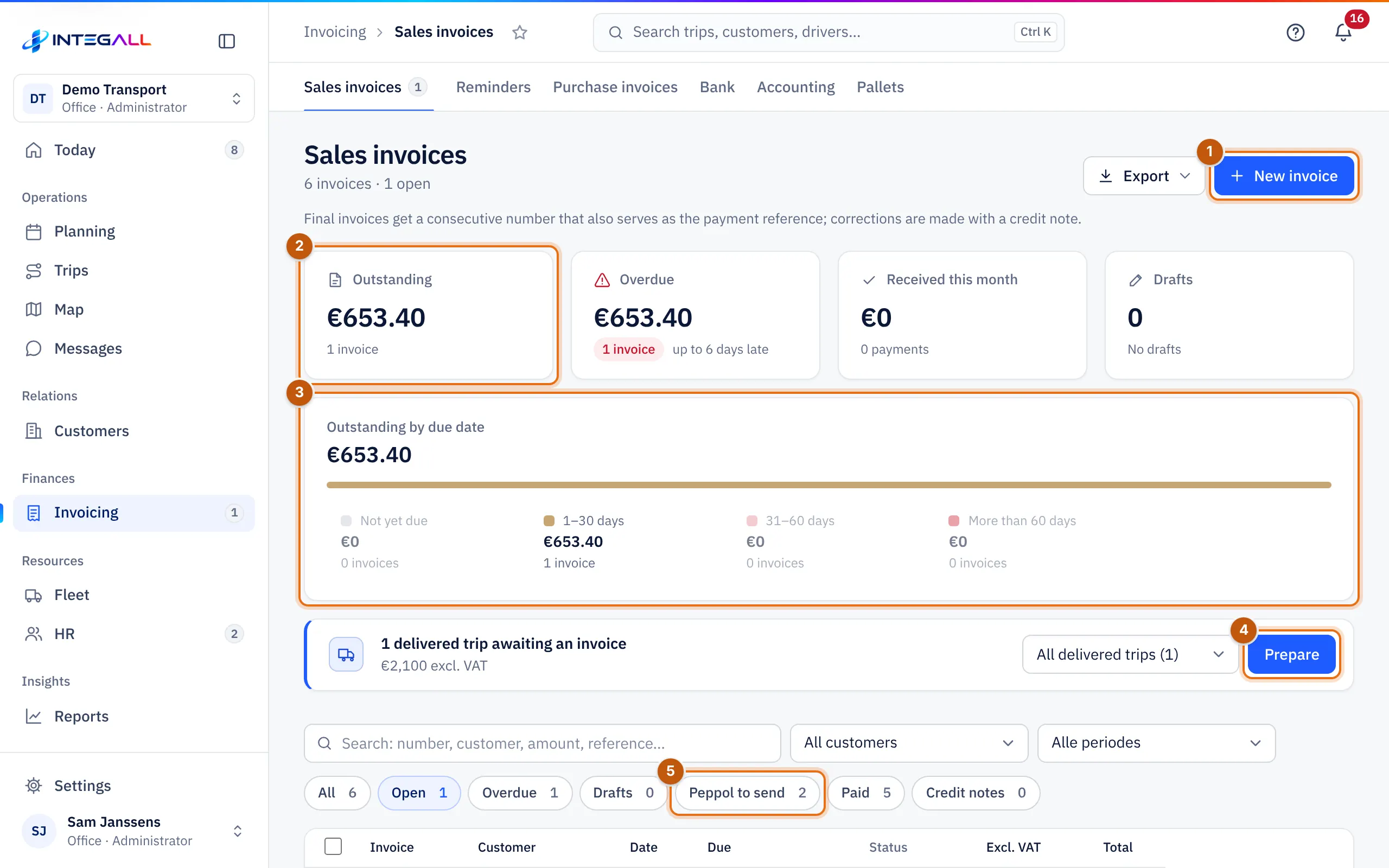
- New invoice: create an invoice by hand.
- Outstanding, next to Overdue, Received this month and Drafts.
- Outstanding by due date.
- Prepare: draw up invoices from the delivered trips that are not invoiced yet.
- The filters, such as Peppol to send.
The overview#
At the top: Outstanding, Overdue (with how many days late), Received this month and Drafts. The card Outstanding by due date splits the open amount into Not yet due, 1–30 days, 31–60 days and More than 60 days.
Filters: All, Open, Overdue, Drafts, Peppol to send, Paid and Credit notes. Columns: Invoice, Customer, Date, Due, Status, Sending, VAT, Excl. VAT and Total. Export gives a CSV or Excel file.
Create an invoice#
There are three ways:
- From delivered trips: choose Prepare. INTEGALL prepares invoices per customer from the delivered trips that are not invoiced yet, according to the customer's invoicing choice (all delivered trips together, one collective invoice per month or one invoice per trip).
- By hand: choose New invoice, choose the customer and add trips or free lines.
- Automatically as a draft: with the rule Automatic draft invoices, a delivered trip with a price gets a draft invoice on its own. Nothing goes to the customer without your click. See Notifications and rules.
In the invoice form you also add surcharges, such as the fuel surcharge (button + Fuel surcharge %, calculated with the diesel index). For customers with a fuel clause this happens automatically when invoicing together.
Draft and final#
An invoice is first a Draft. Check the preview and choose Finalise.
- A final invoice gets a sequential number that also serves as the payment reference.
- A final invoice cannot be deleted or changed; correct it with a credit note.
- The invoice language follows the choice in the customer record (or automatically the country).
- The PDF shows your company details, the VAT breakdown, the correct VAT mention (for example reverse charge for intra-community services) and a QR code the customer scans with their banking app.
The invoice record#
Click an invoice. You see the amount, the status, the invoice and due date, the Reference (the invoice number), the History (created, sent, paid), the payment, the sending, the accounting status and a print preview. Download PDF downloads the PDF.
Send#
- By e-mail: with the e-mail button in the invoice. If e-mail from the system is on, the e-mail goes out directly with the PDF attached; otherwise your own mail program opens.
- Through Peppol: see below.
Mark as paid#
An invoice is set to Paid automatically when the customer pays online (Online payment) or when a bank transaction is matched (Bank). You can also record a payment yourself. Mark as unpaid reverses it.
Peppol#
Invoices to Belgian companies must go through Peppol since 1 January 2026. Fill in the customer's Peppol-ID for this.
In the invoice record, Sending shows whether the invoice is ready for Peppol (BIS 3.0), with the check according to EN 16931 and Peppol BIS Billing 3.0.
- With a connected Peppol access point (under Integrations) INTEGALL sends the invoice through Peppol.
- Without an access point the app sends nothing itself. Choose Download UBL file, upload the file in your Peppol portal or accounting package and then mark the invoice as sent.
The filter Peppol to send shows the invoices that still have to go out through Peppol.
Credit notes#
You correct an error in a final invoice with a credit note:
- Open the invoice and choose Create credit note.
- Adjust the lines and amounts you credit, and the Credit note date.
- Save as Draft credit note or choose Finalise credit note.
After finalising, the credit note gets the next number of the credit note series. The original invoice shows that it was credited. You see credit notes with the Credit notes filter.
Reminders#
Reminders follows up overdue invoices in three steps: a friendly reminder, a second reminder with interest and a lump-sum compensation, and a formal notice. Letters are created in the customer's language.
The table shows per invoice Invoice, Customer, Due, Days overdue, Amount, Interest and Last step, with a button for the next step (for example 1st reminder (PDF)). After sending the PDF, the step is saved with the invoice.
How is the interest calculated? Interest = open amount × the legal interest rate per year × days late / 365, plus a lump-sum compensation (Belgian law of 2 August 2002, commercial transactions). You set the interest rate and the compensation in Company settings; the Belgian FPS Finance publishes the rate every six months.
Reminders can also go out automatically, every morning at 9:00: see Company settings › Notifications and automation. Per customer you turn that off with No automatic payment reminders.