

Account and first sign-in
Register a company, sign in for the first time, set your profile and language, and what to do if you forget your password.
Register a new company#
A transport company creates its own account. The trial period is free and does not ask for payment details.
- Go to company.integall.com/?registreren. You can also choose New company? Try it free on the sign-in screen.
- In Find your company, type a few letters of the name or the VAT number and choose your company in the list. Name and address come from the European VAT register (VIES).
- Fill in Your name, E-mail address (business) and Password (at least 8 characters). A Discount code is optional.
- Tick that you agree to the privacy statement and choose Create account.
- You receive an e-mail. Click the link in that e-mail to confirm your account. Then you can sign in.
Sign in#
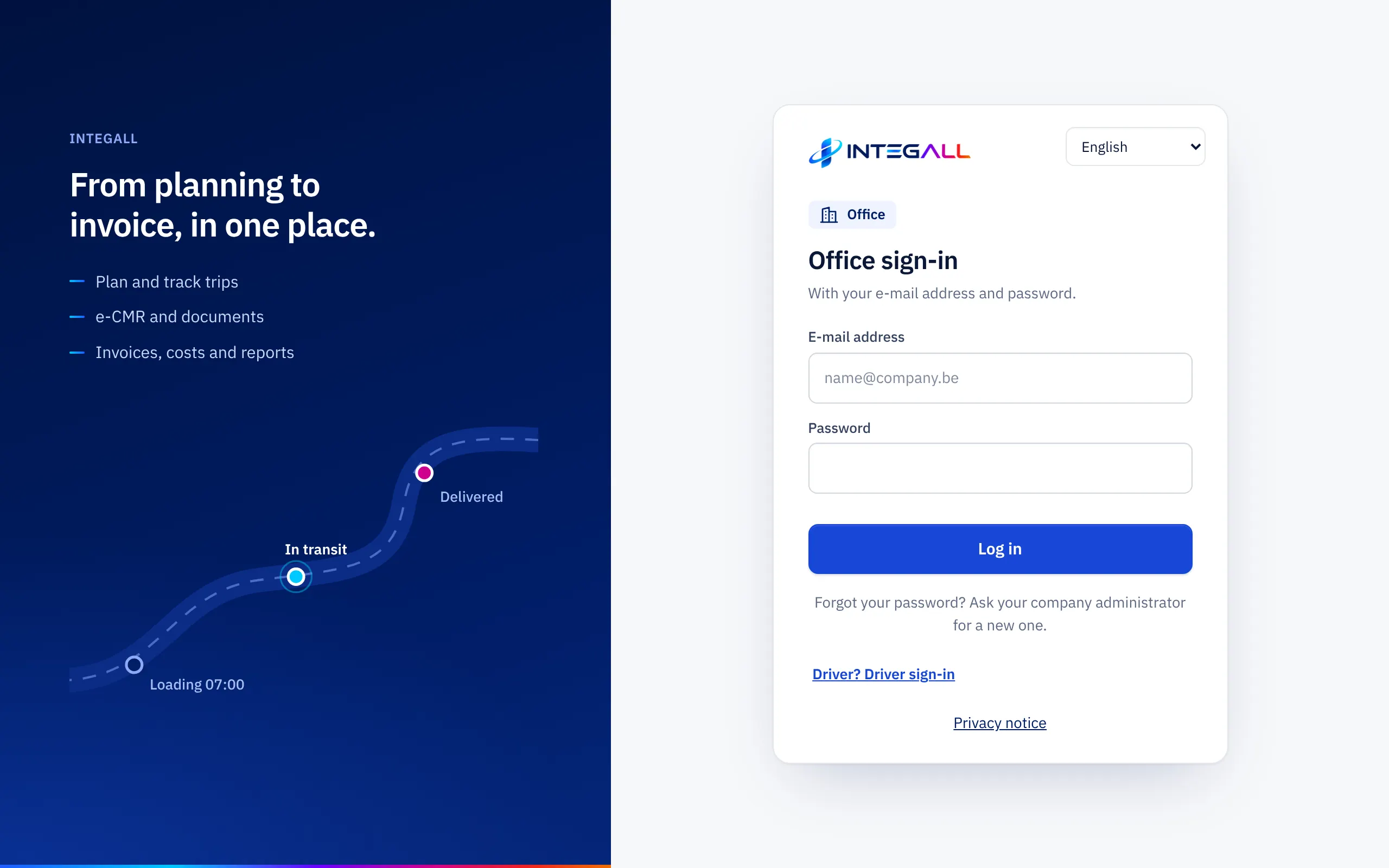
- Open company.integall.com.
- On the sign-in screen choose Office. (Drivers choose Driver; see the driver app.)
- Enter your e-mail address and password and choose Log in.
- If two-step verification is on, the system now asks for the code from your authenticator app. See Two-step verification.
- If your account works for several companies, choose the company you want to work with.
Choose the language at the top right of the sign-in screen: Nederlands, Français, English or Deutsch.
First steps after registration#
On Today, a new company sees the card Getting started with four steps:
- Company details and logo: name, VAT number and IBAN for your invoices (Company settings).
- Add a vehicle and a driver: or import them in one go from Excel (Administration).
- First customer and first trip: plan a trip and assign it to a driver (Trip wizard).
- First invoice: create an invoice from a delivered trip (Invoicing).
A new account contains sample data, marked Voorbeeld (sample). Delete it before you really start with Delete sample data; your own data stays.
Your profile and language#
Go to SettingsMy profile. There you change your name and the language of the app (Taal / Langue / Language / Sprache). Choose Save. You can also change the language at any time via your account at the bottom left.
Forgot your password#
The sign-in screen says: Forgot your password? Ask your company administrator for a new one.
- Office users: the company panel has no button to request a new password yourself. Your company's administrator asks INTEGALL support via SettingsHelp and support; support then sends you an e-mail to choose a new password.
- Drivers: the administrator creates a new password in the driver's record, under App login. See Staff.
Sign out#
Choose your name at the bottom left and then Log out. Always sign out on a shared computer.