

Telematics and GPS map
Connect GPS devices in your vehicles and use the map, trip history, analysis, driving behaviour, zones, alerts and reports.
Map › Telematics shows the data straight from the GPS devices in your vehicles. Only real data from the device; what a device does not measure, we do not show.
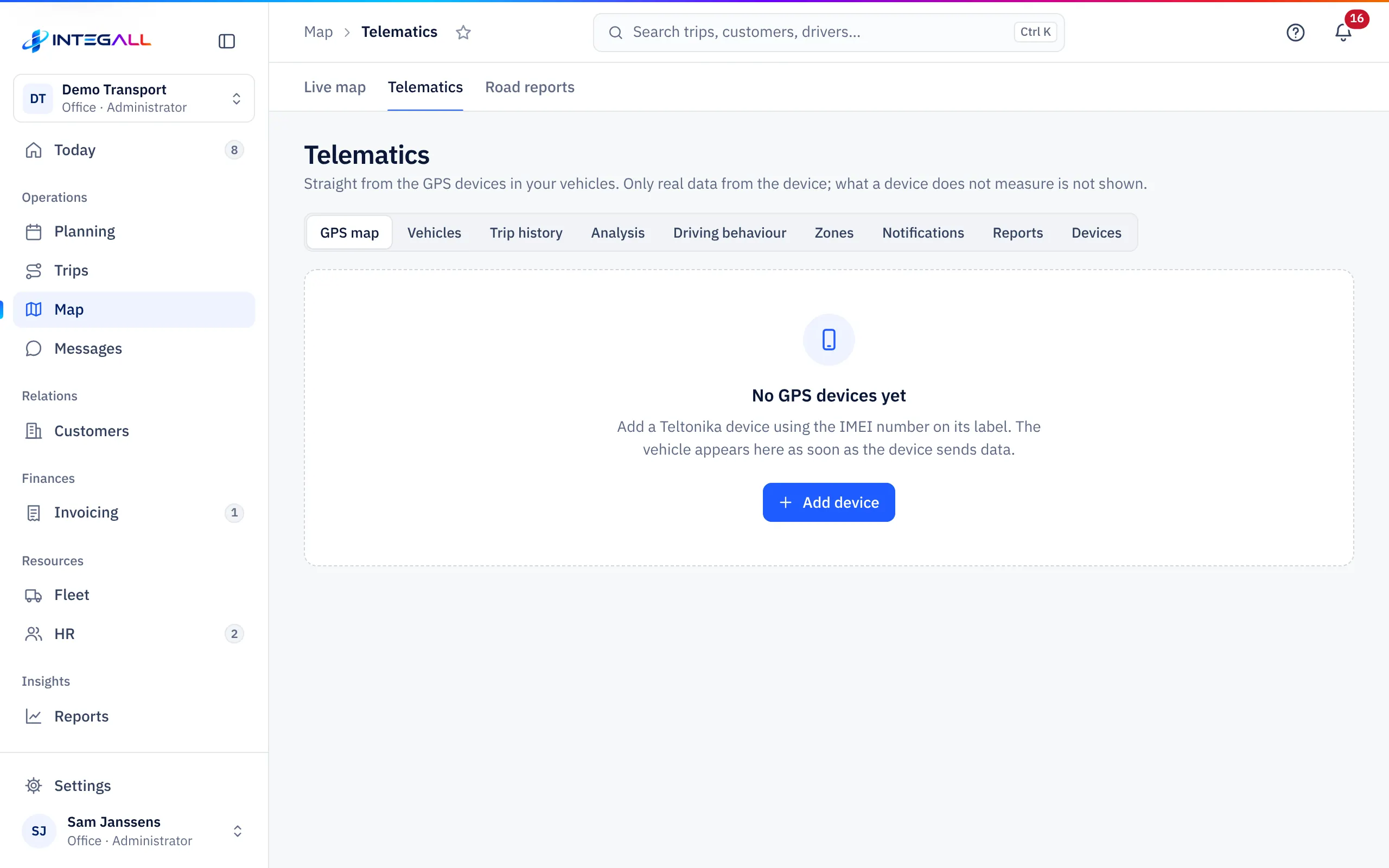
Tabs#
| Tab | What you see |
|---|---|
| GPS map | The last position of every vehicle with a device, with speed, ignition and last contact. |
| Vehicles | Per vehicle the latest device data: position, device odometer, voltage, firmware. |
| Trip history | A vehicle's trips on a day, with stops and the route driven. A trip is a continuous period with ignition on; more than 10 minutes without data is a new trip. |
| Analysis | Distance, driving time and idling per vehicle and per day. |
| Driving behaviour | Harsh braking, harsh acceleration and sharp cornering, with a score per vehicle. |
| Zones | Depots, customers or ports as zones, with alerts on entry or exit and an overview of visits. |
| Notifications | Alerts from the devices and from your zones. |
| Reports | The weekly overview and the monthly report. |
| Devices | Your company's GPS devices. |
Add a GPS device#
INTEGALL receives data from Teltonika devices.
- Go to Devices and choose Add device.
- Enter the IMEI number (15 digits, on the label). INTEGALL checks the check digit.
- Choose the vehicle and leave Active: the device may send data ticked.
- Save.
- In the device configuration, set the server address that INTEGALL shows on this page. As long as INTEGALL has not set up that address, the page says that the server address will be set by INTEGALL.
Register the device before it connects: unknown devices are refused. For driving behaviour alerts, turn on Green Driving and Over Speeding in the configuration.
Driving behaviour and score#
Everyone starts at 100. Points are deducted per 100 km driven for harsh driving and speeding. 85 or more is good, 70 to 84 moderate, below 70 needs attention. Below 10 km in the period, INTEGALL gives no score. Harsh driving only comes in when Green Driving is on in the device.
Zones#
- Go to Zones and create a zone: click the centre on the map (circle) or point by point around the zone.
- Choose Alert on entering and/or Alert on leaving. A forbidden zone always alerts.
Fixed locations are always on the map; a truck standing still there does not raise an idle alert. The company address from the settings is added automatically.
Alerts and reports#
- Alerts go to owner, administrator, planning, fleet and dispatch, on every device where notifications are on.
- Every Monday around 7:00 an overview of the previous week arrives: distance, driving time, idling, alerts and per vehicle the score.
- The Monthly telematics report is one PDF with per vehicle the distance, driving time, idling and score, the ranking of the drivers and all alerts of the month.
Other telematics systems#
Webfleet, Geotab, Samsara and rFMS (truck manufacturers) each have their own tile under Integrations. Without a GPS device, positions come from the driver app on the live map.