

Sign in and today's trips
Sign in with your username, the overview of today, your trips, the stops and your truck.
Sign in#
- Open chauffeur.integall.com or the INTEGALL icon on your home screen.
- Choose your language at the top right.
- The screen Driver sign-in is open. If you see the office screen, choose Driver.
- Enter your Username and Password. You got them from the office.
- Tap Log in.
Use your username, not an e-mail address. Forgotten your password? Ask the office for a new one.
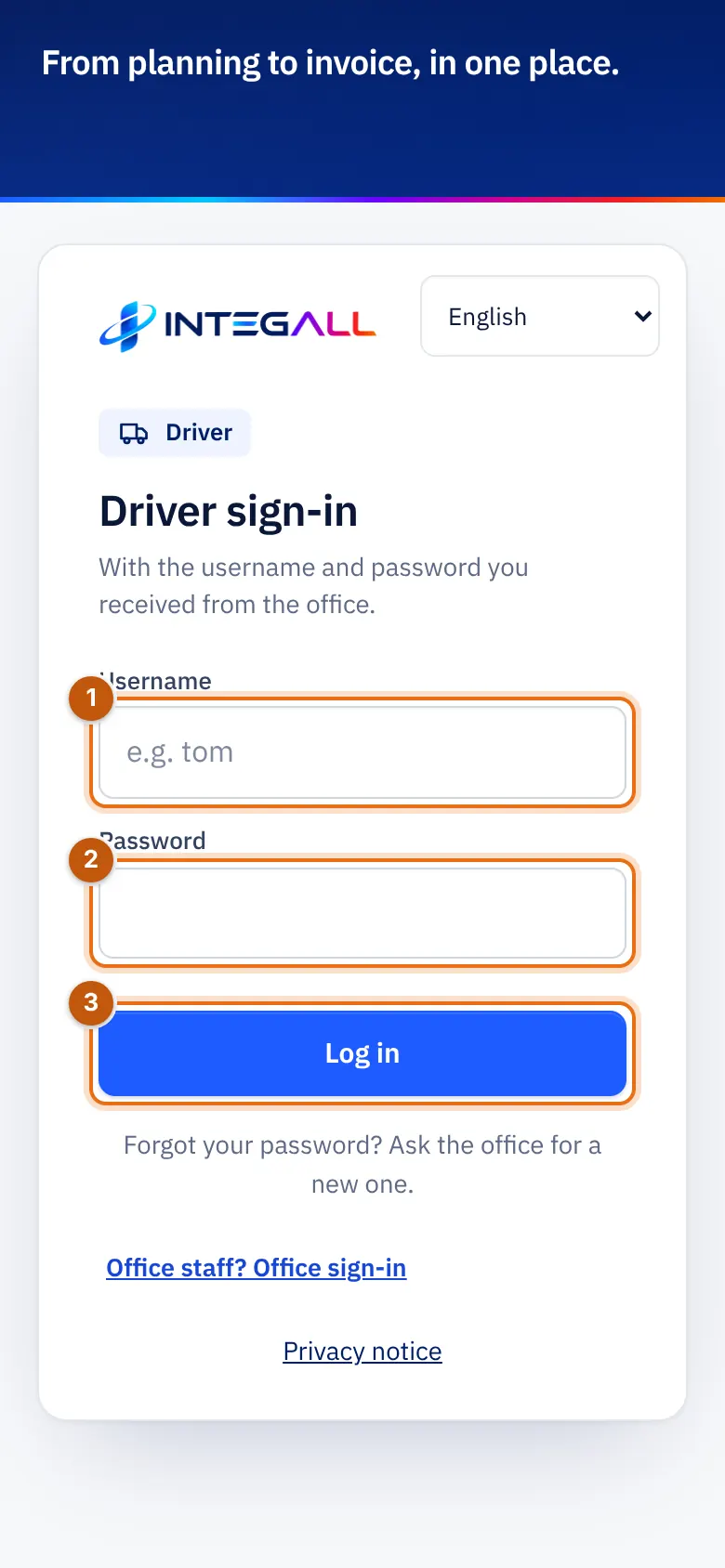
- Username.
- Password.
- Log in.
The overview#
After signing in you see the Overview:
- Your active trip: the status, the trip number, the next stop (loading or unloading) with place and date, the route, the cargo and the weight.
- Buttons on the trip: the next step (for example Start loading, Loaded, departing or Delivered), Start waiting time, Navigate, Details and note, CMR (PDF).
- Shortcuts: Chat office, Scan CMR, Report defect, Refuel, Expense / receipt, Photo / CMR and Odometer.
- Share location during trips: see below.
- Notifications: for example a document that expires soon or a delivery that is late.
- Your month: trips, delivered, km and punctuality.
- Next 7 days: your planned trips per day.
- My truck: odometer, next maintenance, inspection, insurance and calibration, with Enter odometer reading.
At the bottom are the tabs Overview, Trips, Expenses, Tools, History and Me.
Your trips#
The Trips tab shows all your active trips with the stops: Loading and Unloading, with date, time slot and place, the cargo and the vehicle. A stop first shows where you have to go (the company or the terminal, with the quay and the stop's reference) and then the address. For a container trip you also see the container number, size and type and the codes for the terminal (TAR, PIN, release, seal).
Details and note opens the full trip, with the office's Instructions for the driver. There you also write a note for the office.
Navigate#
Navigate opens the route to the next stop. With Other app you choose Google Maps, Waze or Apple Maps; your choice is remembered.
Share location#
Under Share location during trips choose Turn on. The office sees where you are during a trip, only while the app is open. Sharing is off by default and you can turn it off at any time. Positions older than 7 days are deleted automatically.
History#
History shows your completed trips.
The new driver app#
In the new driver app, after signing in you see My trips for the next 7 days, with Pre-departure check, Navigate and Details per trip. At the top are Call the office, SOS and Need help, and the buttons Messages, Expenses, My folder, Report a restriction and Map.