

Steps on the road
Departure check, loading, departing, waiting time, delay, border, delivering with signature and reporting problems.
Every step you set in the app is seen by the office straight away. Without network the steps are kept and sent later.
Departure check#
The office decides whether the departure check is required: every day before the first trip, before every trip, or not required. If it is required, the app says: Do the departure check first.
- Tap Pre-departure check.
- Indicate per point whether it is in order. If everything is in order, tap All good.
- If something is not in order, describe the defect and take a photo (the office can make a photo required).
- Send the check.
A defect goes straight to the office's workshop. With a critical defect the vehicle is blocked until the office releases it: do not leave and call the office.
Loading, departing and delivering#
The button on your trip always shows the next step:
- Start loading when you start loading.
- Loaded, departing when you leave.
- Delivered when the cargo has been delivered.
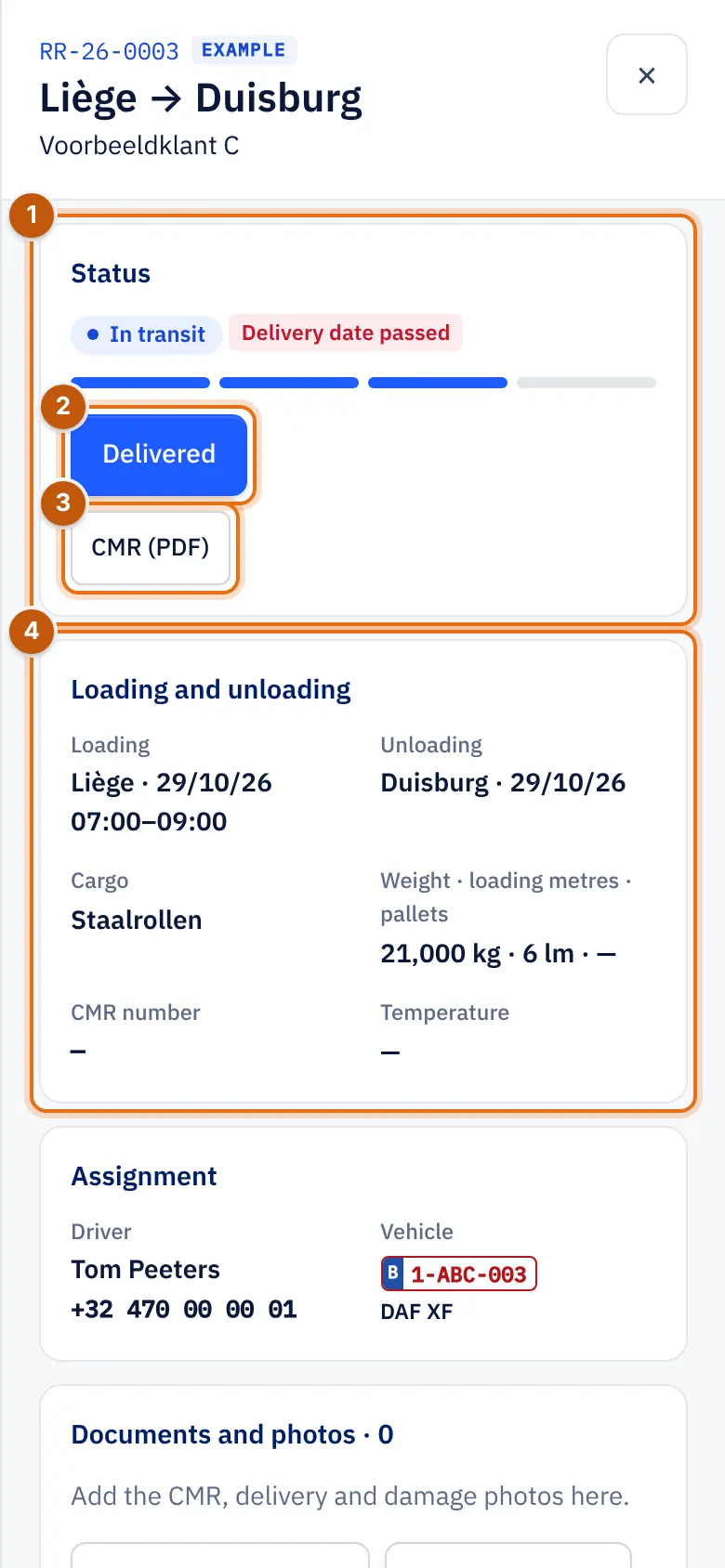
- Status: where the trip stands now.
- The next step, here Delivered.
- CMR (PDF).
- Loading and unloading: place, date and time slot of each stop, the cargo and the weight.
Deliver with a signature#
Delivered opens the Proof of delivery (proof of delivery):
- Enter the Recipient name *.
- Let the receiver sign at Recipient signature (Sign here with your finger; Clear to start over).
- Tick Goods received complete and in good condition, or fill in Reservations / remarks (damage, shortage, waiting).
- Fill in Pallets delivered and Empty pallets returned.
- Tap Confirm delivery.
The customer gets the proof of delivery with the signature. If the trip uses an e-CMR, the receiver signs the e-CMR; see Photos, documents and CMR.
Waiting time#
If you have to wait when loading or unloading, tap Start waiting time. When the waiting is over, tap Stop waiting time. The office sees the waiting time on the trip and can charge it to the customer.
In the new driver app#
The new driver app has more steps. Tap Details on the trip and choose the step:
- Arrived at the loading address, Loading started, Loaded, Departed;
- Border: choose Which country are you entering?;
- Report a delay: choose How much delay? and the Reason (Traffic jam, Waiting at loading or unloading, Loading or unloading takes longer, Breakdown, Weather, Border / customs, Other);
- Arrived at the unloading address and Delivered with Name of the receiver, Signature of the receiver, Goods in good condition (no reservations) and the pallets.
Under Already reported you see which steps have been sent.
Report a problem#
In the new driver app you report a problem on a trip with Report a problem: Damage to the goods, Damage to the vehicle, Accident, Delivery refused, Address not found / closed, Long waiting time or Something else. Write briefly what happened and take photos. The office is informed straight away.
Accident or damage#
Tools has a checklist for an accident or damage: make the vehicle safe, hazard lights and high-visibility vest on, call 112 if anyone is injured, take photos, fill in the European accident report and inform the office. With Fill in accident report and Damage photo you record everything.
Driving and break timer#
Tools has a Drive and break timer with Drive, Break and Stop. It shows how long you have been driving since the last break and your driving time today and this week.