

Photos, documents and CMR
Add photos and documents to a trip, scan a CMR into one PDF, open the CMR, have the e-CMR signed and your own documents in My folder.
A photo or document on a trip#
- Tap Photo / document on the trip (or Photo / CMR on the overview).
- Choose the kind: CMR, Delivery photo, Damage, Loading photo, Receipt / invoice or Other.
- Take the photo or choose a file.
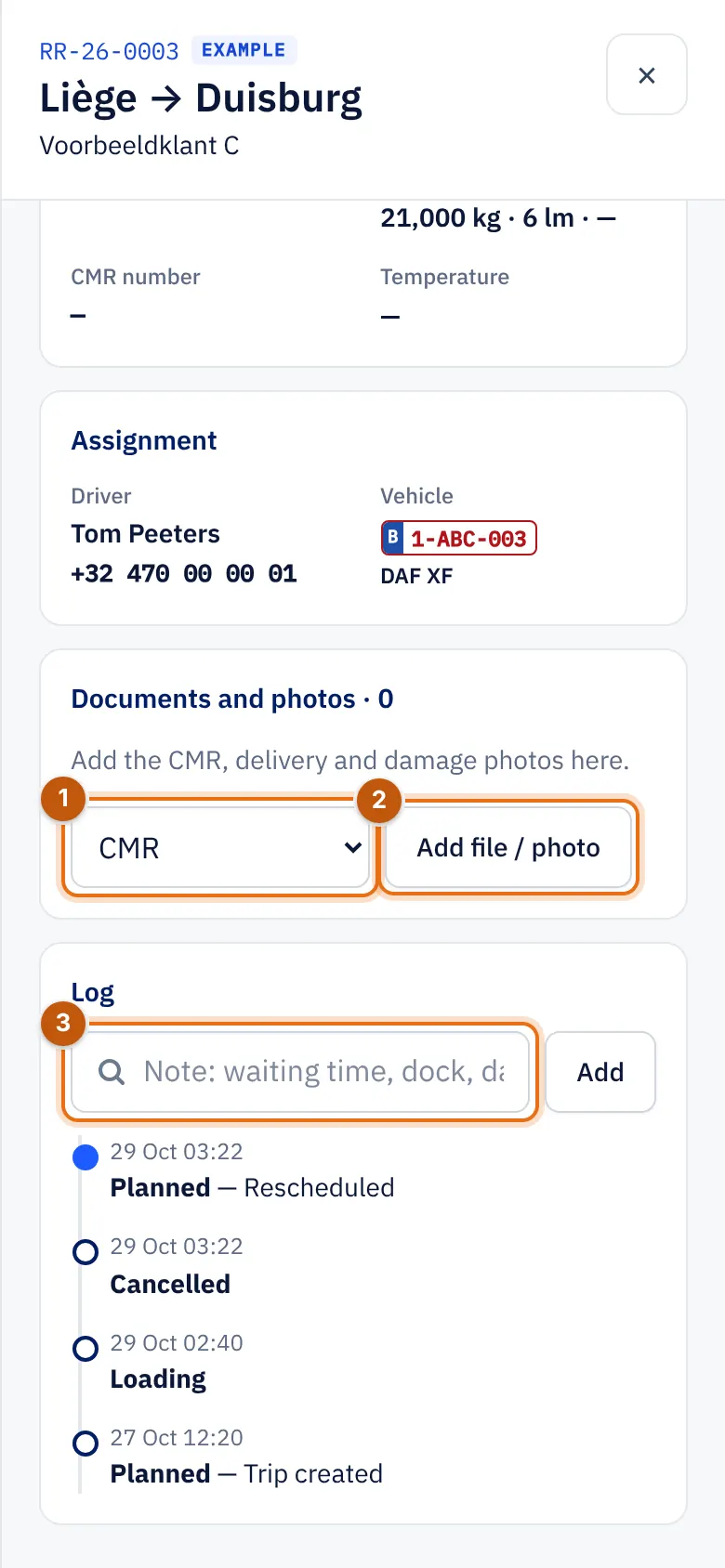
- The kind of document, for example CMR.
- Add file / photo.
- A note for the office in the Log.
The photo reaches the trip at the office straight away. Without network it is kept and sent later.
Scan a CMR#
With Scan CMR you photograph all pages of the CMR or delivery note; the app turns them into one PDF and adds it to the trip.
- Tap Scan CMR (on the overview or in Tools).
- Photograph every page.
- Confirm. The PDF is added to the trip.
Open the CMR#
CMR (PDF) opens the trip's CMR consignment note, as the office prepared it.
e-CMR#
If the office works with an electronic consignment note, you and the receiver sign on the phone:
- Open the trip and the e-CMR.
- Choose Sign on this device.
- Let the person sign with a finger. Optionally fill in a reservation.
- Confirm. The signature is saved with the time.
If you drive to a country that does not accept the e-CMR, the office tells you to take a paper CMR along.
My folder#
In the new driver app, My folder holds your documents, which also open without network: your personal documents and those of your vehicle. Under Validity you see the expiry date of Licence, Code 95, ADR certificate and Driver card.
- On this device: the document also opens without network.
- Network needed: find network first.
- If a document has expired, ask the office for a new one.
In the full app you see your documents under Me › My documents.