

Two-step verification and sessions
Protect your account with a code from an authenticator app, require two-step verification for the whole office and manage the devices you are signed in on.
With two-step verification, the system asks at sign-in not only for your password but also for a 6-digit code from an app on your phone, such as Google Authenticator or Microsoft Authenticator. Nobody gets in with your password alone.
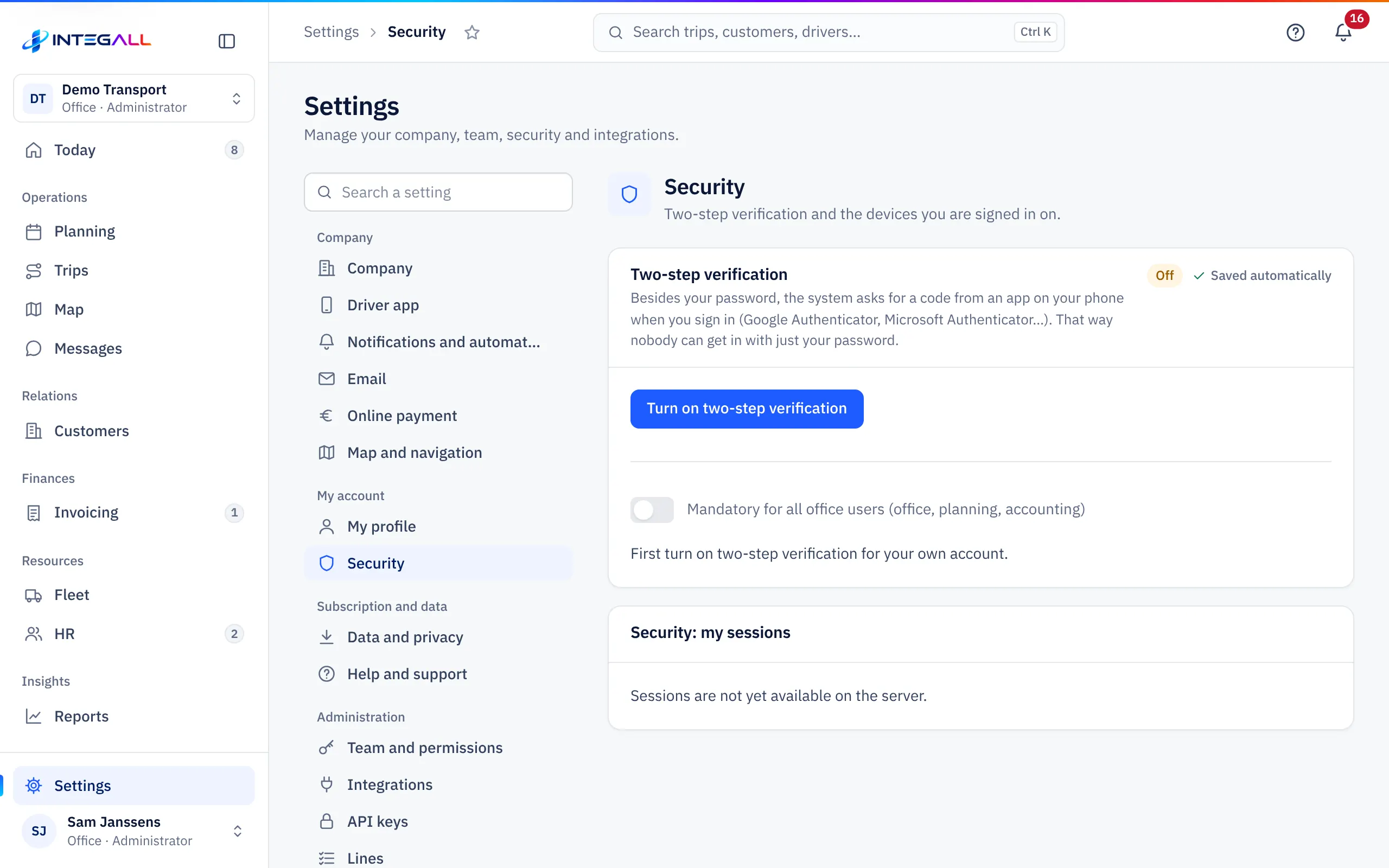
Turn on two-step verification#
- Install an authenticator app on your phone.
- Go to SettingsSecurity.
- Choose Turn on two-step verification.
- Scan the QR code with the app. If scanning does not work, type the key shown below the QR code.
- Enter the 6-digit code shown by the app and confirm.
Two-step verification then shows: Two-step verification is on.
Sign in with a code#
After your e-mail address and password, the system asks for the Code from your authenticator app. Open the app and enter the code. A code is only valid for a short time; if it is rejected, use the new code shown by the app.
Require it for the whole office#
An administrator can require two-step verification with Mandatory for all office users (office, planning, accounting).
- You must first turn on two-step verification for your own account.
- Anyone who has no authenticator yet must set it up at their next sign-in. The system then shows the screen Set up two-step verification.
- Drivers keep signing in with their password.
Actions that ask for a fresh code#
For sensitive actions the system asks for a code again, even when you are signed in. Examples: creating an API key or webhook, creating a NAV key, sending Dimona declarations and some payment settings. Without two-step verification you cannot perform those actions; the system asks you to turn it on first (SettingsSecurity).
Your sessions and sign-ins#
Security: my sessions lists the devices and browsers you are signed in on, with Device, Signed in on and Last active.
- If you do not recognise a device, choose Sign out for that device and change your password.
- Sign out all other devices signs out all other devices at once.
- Recent sign-ins shows when and from which network you signed in, with two-step code or without two-step code.
Administrators also see Team sign-ins (30 days).
Lost or new phone#
The codes exist only in the authenticator app on your phone. If you no longer have access to that app, you can no longer sign in with two-step verification. Contact your company's administrator, who can ask INTEGALL support for help. On a new phone, set up the authenticator again via SettingsSecurity while you can still sign in.