

Team and permissions
Add office users, assign roles and custom roles, teams per branch, access rules and the four-eyes principle.
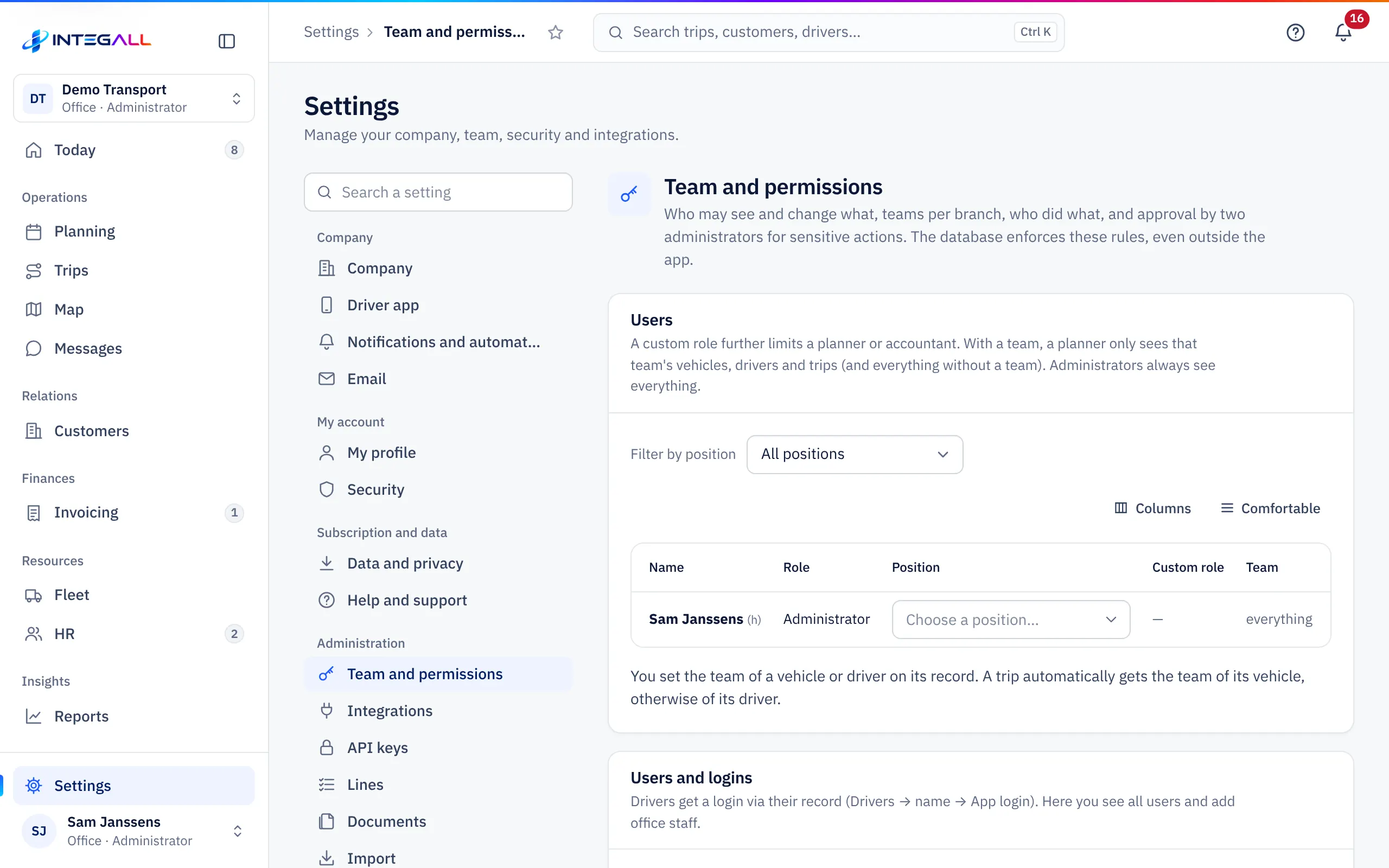
Under SettingsTeam and permissions you decide who may see and change what. The database enforces these rules, also outside the app: a user without permission does not get the data another way either.
Roles#
Every office user has one base role. It sets the maximum of what the user may do.
| Role | Sees and does |
|---|---|
| Administrator (everything) | Everything, including settings, team and permissions, integrations and invoicing. |
| Planner (no invoices or payroll) | Planning, trips, customers, fleet and staff. No invoicing, purchasing, bank, accounting, payroll, profitability and reports, and no administration sections such as Team and permissions, Lines, Import and Integrations. |
| Accounting (invoices, costs, payroll) | Invoicing, reminders, purchasing, bank, accounting, expenses, fines, payroll, reports and profitability. Trips and customers for invoicing. |
| HR (drivers, leave, payroll – no trips or invoices) | Staff, leave, availability, payroll, bonuses and messages. For trips only a summary without customer, price or address. |
Drivers are not office users. They get a login through their own record (Staff) and in the app only see their own trips, expenses and pay overview.
Add an office user#
- Go to SettingsTeam and permissions.
- Under Add office staff, enter the Name and the Email (login).
- Optionally enter a Position. This is only the job title and does not change any permissions.
- Choose the Role.
- The system suggests a password in Password (min. 8 characters). Give it to the new user personally.
- Choose Add.
Everyone uses the same address. The office sees the management screens, drivers only their own screen.
The list of users#
The Users table shows per person Name, Role, Position, Custom role, Team, Last signed in and Changes (30 d). Use Filter by position and Columns to adjust the view. You remove an office user with Delete.
Teams per branch#
With a team, a planner only sees the vehicles, drivers and trips of that team, plus everything without a team. Administrators always see everything.
- You set the team of a vehicle or driver in their record (field Team).
- A trip automatically gets the team of its vehicle, otherwise of its driver.
Custom roles#
A custom role restricts a planner or accountant further. A custom role can only restrict the base role: what the base role may not do stays forbidden.
- Choose + New role.
- Name the role and choose per area None, Read or Write. The areas are Planning and trips, Customers and quotes, Invoices and prices, Purchasing and subcontractors, Drivers and vehicles, Expenses and fines, Payroll and Settings.
- Assign the custom role to a user in the Custom role column.
+ External accountant (read only) creates in one click a role for an external accountant who may read everything but change nothing.
On a page with read-only access, the user sees at the top: Read only: your role does not allow changes here.
Role templates#
Role templates are ready-made custom roles for your kind of company. Choose the Type of company and then Create role. A template becomes a normal custom role that you can still adjust.
Permissions per role#
The Permissions per role table shows the default permissions of every role: R = read, W = write, A = approve, X = export.
Access rules#
With Access rules you restrict a role to certain customers, vehicles or drivers, or exclude some.
- Choose New rule and enter a Rule name.
- Choose For whom (a role or custom role), On which right (Shipments and planning or Fleet, maintenance and inspections) and Rule type: Only these or Not these.
- Choose Applies to: Customers, Vehicles or Drivers, and select them.
- Choose Save.
A rule can only restrict, never grant more access. The owner and administrators never fall under a rule. Every change goes into the security log. You can create at most 100 rules.
Four-eyes principle#
When the Four-eyes principle is on, a second administrator must approve:
- adding, removing or changing the role of office users;
- deleting a final invoice;
- changing the company's bank account or the Mollie key;
- changing roles;
- turning the four-eyes principle off.
How it works:
- Choose Turn on. This needs at least two administrators.
- When an administrator then performs one of the actions above, the system says: The four-eyes principle is on: a second administrator must approve this. The request is waiting under Team and permissions.
- Another administrator approves or rejects the request on Team and permissions. The person who made the request cannot approve it.
- Requests expire after 7 days.
The four-eyes principle also appears elsewhere: an invoice saved as a draft is approved and finalised by a colleague, and a road report from a driver is checked by another colleague.
Activity and change log#
The Activity card shows changes to permissions and approvals. Who changed what in trips, customers and other data is shown per user in the Change log. See Administration.