

Expenses and odometer
Enter fuel, toll, parking and other expenses with a photo of the receipt, the status of your expenses, and enter the odometer reading.
Enter an expense#
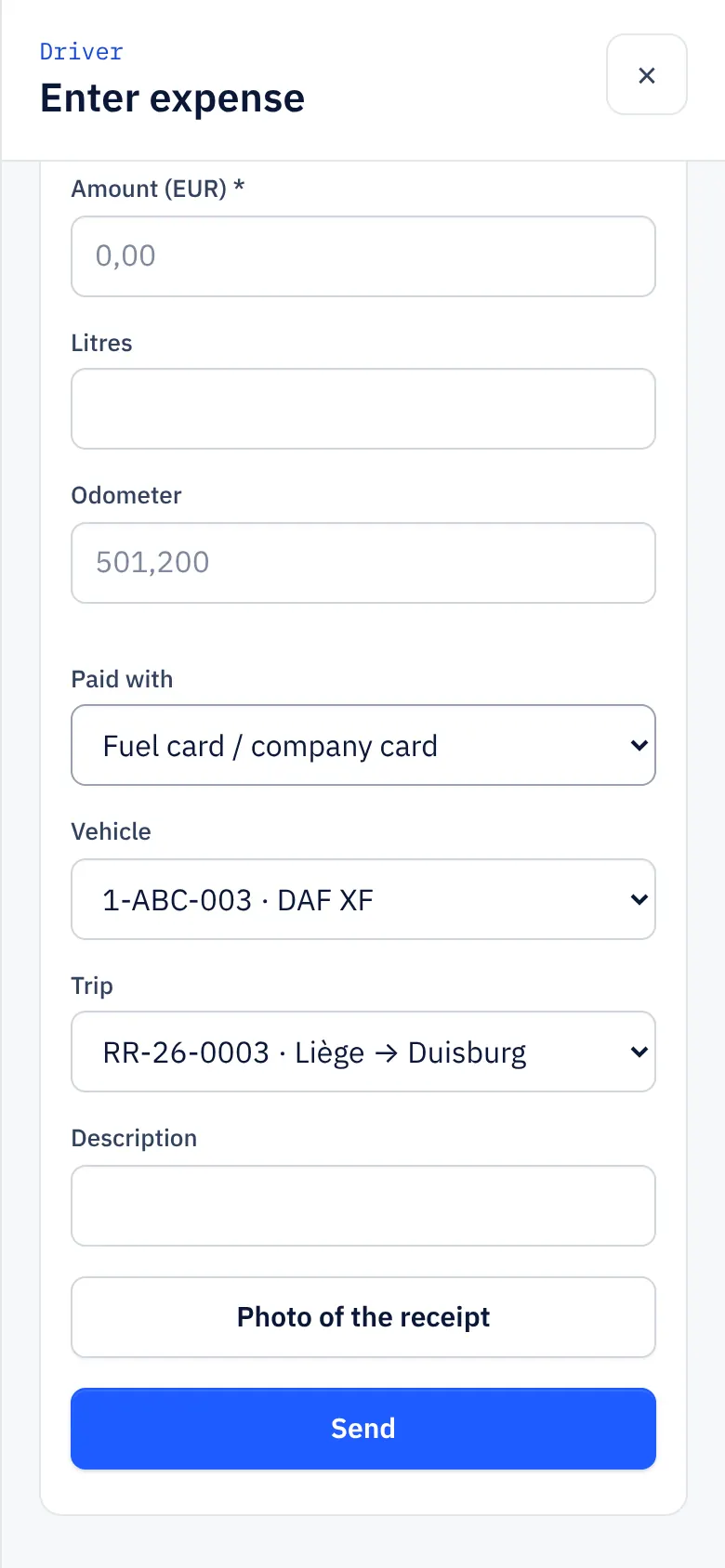
- Tap Expense / receipt (or Refuel for diesel).
- Choose the Type: Diesel, Toll / road charge, Parking, AdBlue, Washing, Repair / parts, Overnight stay or Other.
- Fill in the Date, the Country and the Currency.
- Enter the amount. For diesel also the litres and the Odometer.
- Choose under Paid with: Fuel card / company card or Out of pocket (to reimburse).
- Choose the Vehicle and the Trip, and write an Description.
- Take a Photo of the receipt.
- Tap Send.
The office decides whether a photo of the receipt is required (for example when you paid yourself). If you paid in another currency, the office converts the amount into euros when approving.
The status of your expenses#
Under Expenses you see your expenses of the month. The office approves or rejects every expense:
- In progress: the office still has to look at it.
- Approved: in order. What you paid yourself is reimbursed.
- Rejected: with the office's reason.
In the new driver app your expenses are under Expenses, with Still to receive (what you still get back) and Awaiting approval, and the status Submitted, Approved, Rejected or Refunded.
Enter the odometer reading#
- Tap Odometer or Enter odometer reading under My truck.
- Choose the Vehicle and enter the Odometer. You see the current reading.
- Tap Save.
If the reading is lower than the previous one, the app warns you. The odometer decides when the next maintenance is due.
Report a defect#
Something broken or not in order on the truck or trailer? Tap Report defect, choose the Vehicle and how urgent it is (Can wait, Normal or Do not drive), describe What is wrong?, add a photo and tap Report. The office sees it straight away in the workshop.