

New trip with the trip wizard
Create a trip in four steps according to the kind of transport, with container patterns, Paste order, the container number check and the proposal from the last trip.
New trip and Edit open the trip wizard. The wizard only asks the questions that belong to your kind of transport, in the right order.
The four steps are shown at the top: 1 Customer and type, 2 Data, 3 Assignment and price and 4 Overview. Go on with Next and back with Previous. A step that is already done can be clicked directly at the top.
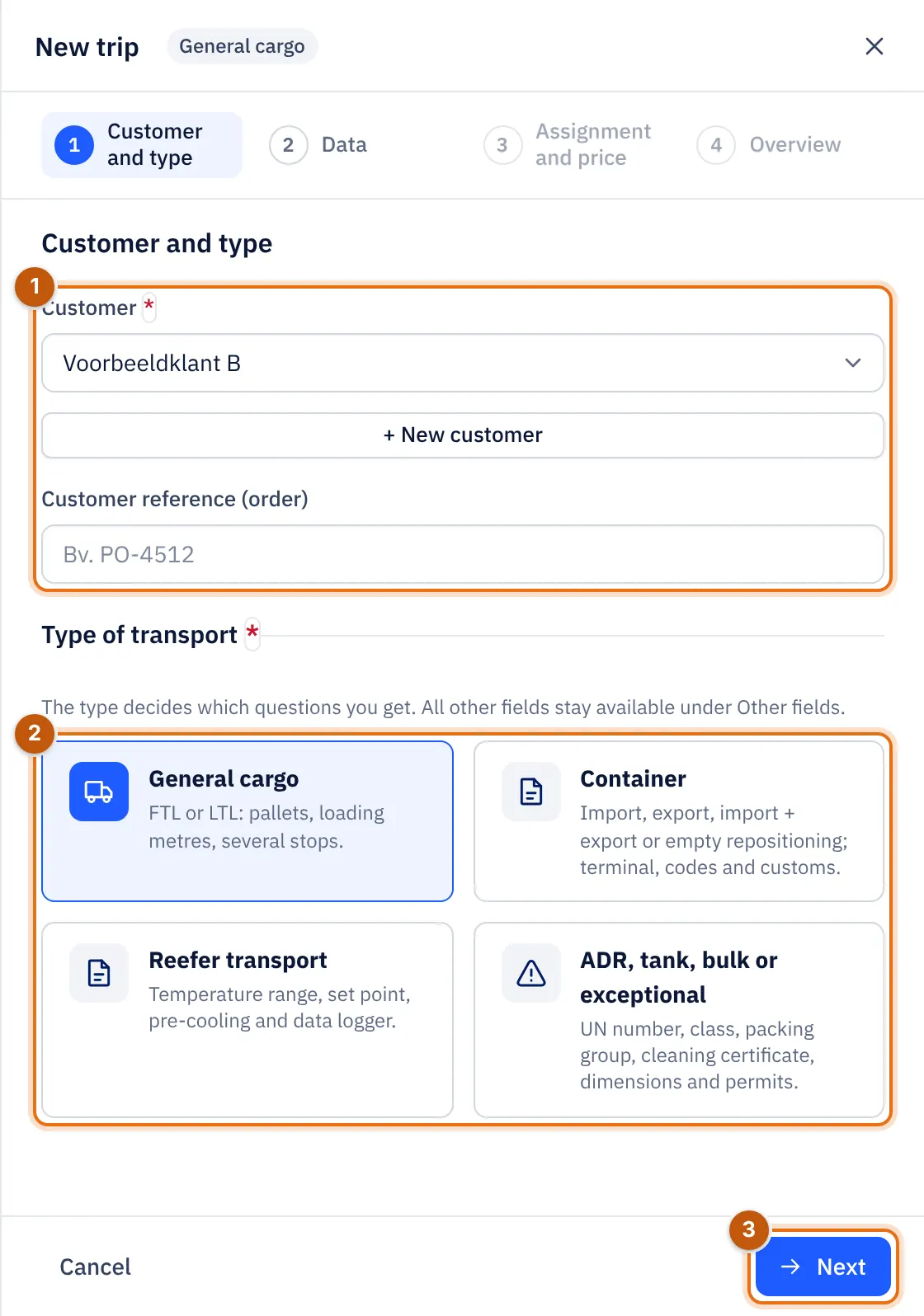
- The Customer.
- The Type of transport.
- Next goes to step 2.
Step 1: customer and kind#
- Choose the Customer. If the customer is not in the list yet, choose + New customer.
- Optionally enter the Customer reference (order).
- Choose the Type of transport:
| Kind | For | Extra questions in step 2 |
|---|---|---|
| General cargo | FTL or LTL: pallets, loading metres, several stops | Cargo, CMR number, distance |
| Container | Import, export, import + export or empty move | Pattern, container, terminal and codes, customs and deadlines |
| Reefer transport | Temperature-sensitive cargo | Temperature range, set point, pre-cooling and data logger |
| ADR, tank, bulk or exceptional | Dangerous goods, tank, bulk/silo, exceptional transport | UN number, class, packing group, cleaning certificate, dimensions and permits |
The kind decides which questions you get. All other fields stay reachable under Other fields; nothing is lost.
Proposal from the last trip#
When you choose a customer that already has trips on a new trip, INTEGALL proposes the values of that customer's last trip: the kind of transport, the container pattern, terminals, addresses and price.
- Only empty fields are filled in; what you already typed stays.
- Every proposed field is marked voorgesteld (proposed).
- A message says which trip the proposal comes from, for example Proposal from this customer’s last trip with the trip number and date.
- Clear proposal undoes the proposal.
Always check proposed values, especially dates and references.
Step 2: details#
Route and stops#
Every stop has a company, address, place, country, date, time or time slot and its own reference. For general cargo, the first stop is loading and the last is unloading. With Add stop you add intermediate stops and put them in the right order. If address suggestions are enabled for your company (Map and navigation), INTEGALL suggests addresses while you type.
Fields with an asterisk are required, such as the place and date of the first stop. If something is missing, the wizard stays on this step and jumps to the field that still needs to be filled in.
Cargo#
Load type (FTL (full truck) or LTL (part load)), Description, Pallets, Loading metres and Weight (kg). For general cargo, reefer and ADR transport also the CMR number and the Distance (km); Calculate distance calculates the distance.
Container: choose the pattern#
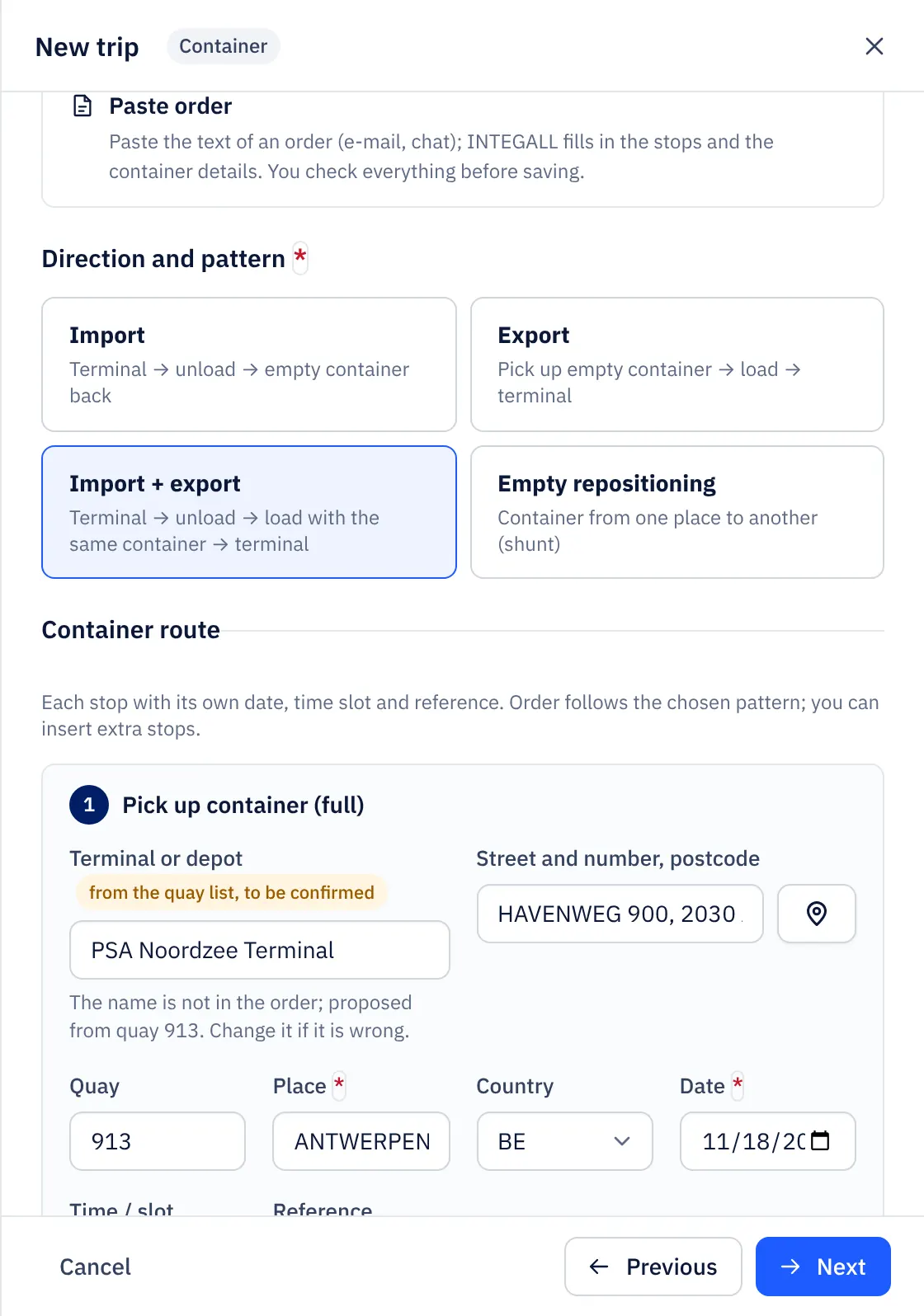
For Container you first choose Direction and pattern. The pattern decides the stops and their order:
| Pattern | Sequence | Stops |
|---|---|---|
| Import | Terminal → unload → empty container back | Pick up container (full), Unloading, Return empty container |
| Export | Pick up empty container → load → terminal | Pick up empty container, Loading, Drop container (full) |
| Import + export | Terminal → unload → load with the same container → terminal | Pick up container (full), Unloading, Loading, Drop container (full) |
| Empty repositioning | Container from one place to another (shunt) | Pick up (repositioning), Drop (repositioning) |
Every stop has its own date, time slot and reference. A stop at a terminal or depot also has a Quay (quay) field. You can insert extra stops.
Container: details#
Under Container / port:
- Container number: leave empty if you only have a booking number.
- Size (feet) (20, 40 or 45) and Type (DV, HC, RF, OT, FR or TK). The Type (ISO code) is filled in from these and can be changed.
- Seal number and Shipping line.
Under Terminal and codes: Terminal (for the connection), TAR code, PIN code, Release number, Booking number, B/L number, Vessel, Voyage, Closing (terminal cut-off) and Time slot (TAR). The pick-up and drop terminal with quay are with the stops of the route.
Under Customs and deadlines: Customs status (T1 (transit), Cleared or To be cleared), Free days, Demurrage free until and Detention: empty return by. The container register reminds you two days in advance; see Containers.
Container number check (ISO 6346)#
INTEGALL checks the check digit of every container number according to ISO 6346.
- If it is correct: Valid container number (check digit correct).
- If it is wrong, you see a warning with the expected digit, for example the check digit is wrong: expected 8, entered 1.
A wrong check digit is a warning, not a block. If you checked the number and it is correct anyway, tick Use this number anyway (I have checked it).
Reefer transport#
Minimum temperature (°C), Maximum temperature (°C), Set point (°C), Reefer unit mode (Continuous or Start/stop (cycle)), Pre-cool before loading with Pre-cool to (°C), Data logger on board with the Data logger number. The field Temperature (text on CMR and lists) is filled in from minimum and maximum if you leave it empty.
ADR, tank, bulk or exceptional#
Tick what applies: ADR (dangerous goods), Tank, Bulk / silo or Abnormal load. Then fill in what is needed: UN number, Class, Packing group, ADR points (1.1.3.6), Proper shipping name, Tunnel code, Tank/silo cleaning certificate (number) with Cleaning date, the dimensions (Length (m), Width (m), Height (m)), the Exceptional transport permit and Escort required.
Paste order#
If you receive an order by e-mail or chat, you do not have to retype it.
- In step 2 open Paste order. For a container trip this box is already open.
- Paste the text into Text of the order.
- Choose Recognise.
- INTEGALL shows a preview: what was recognised (kind, pattern, container number, size and type, codes) and per stop the company and address, date and time and the reference. What is not in the order is marked niet in de opdracht (not in the order). Lines that were not understood stay visible.
- Choose Copy into the form or Do not copy.
- Check all fields and add what is missing.
Nothing is saved on its own: the trip only exists once you confirm in step 4.
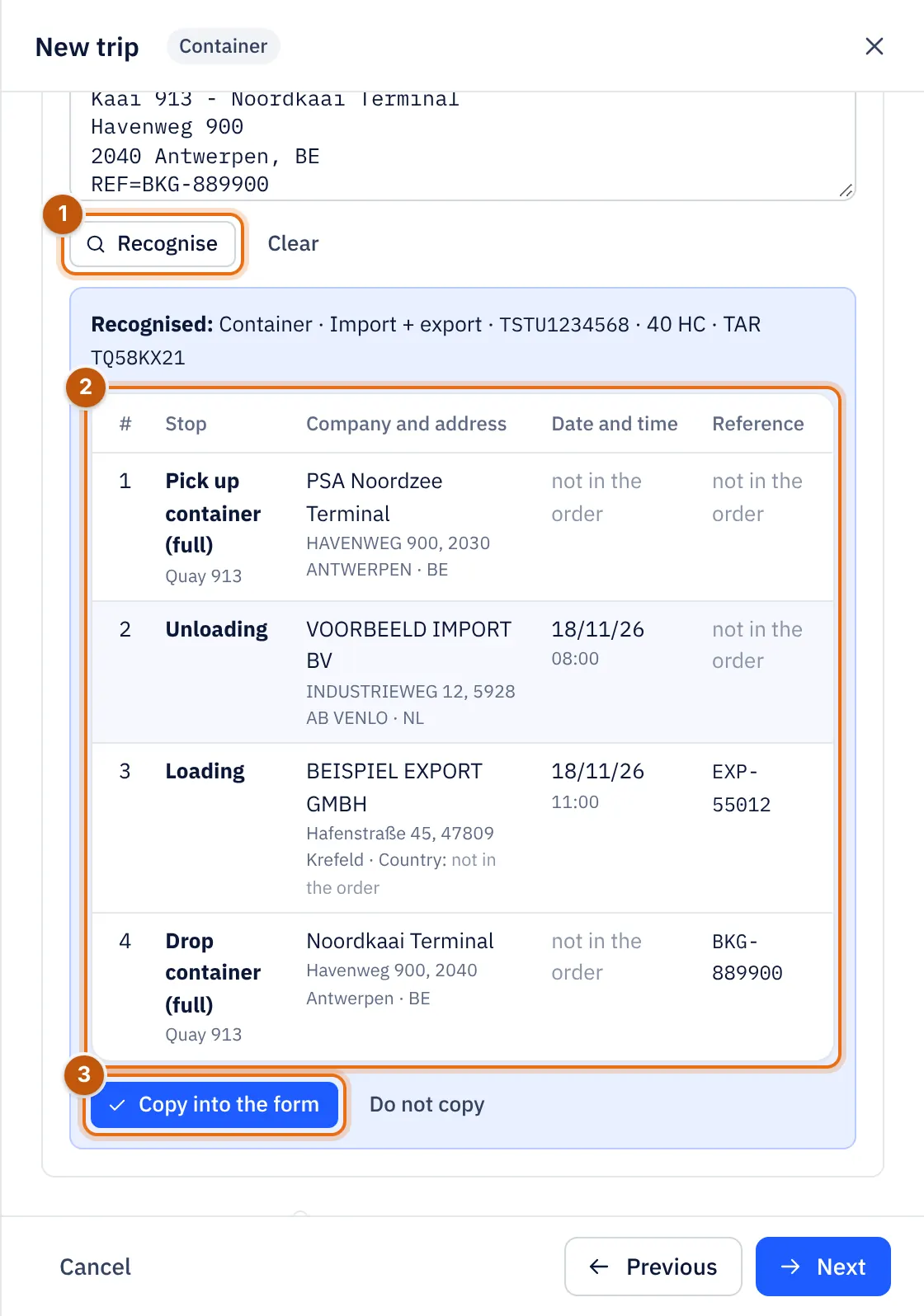
- Recognise reads the pasted text.
- The preview: every recognised stop with company, address, date and reference.
- Copy into the form fills in the steps. With Do not copy nothing happens.
Step 3: assignment and price#
- Driver and Vehicle, or — Assign later —. A driver or vehicle already on a trip is shown with (in rit) (on a trip).
- Subcontractor: choose a carrier you subcontract the trip to, with the Subcontractor purchase price (€). Leave — Own fleet — for your own trucks.
- Freight price excl. VAT (€). With a distance you also see an estimate of the cost price and margin.
- Instructions for the driver: appears in the driver app.
Step 4: overview and confirm#
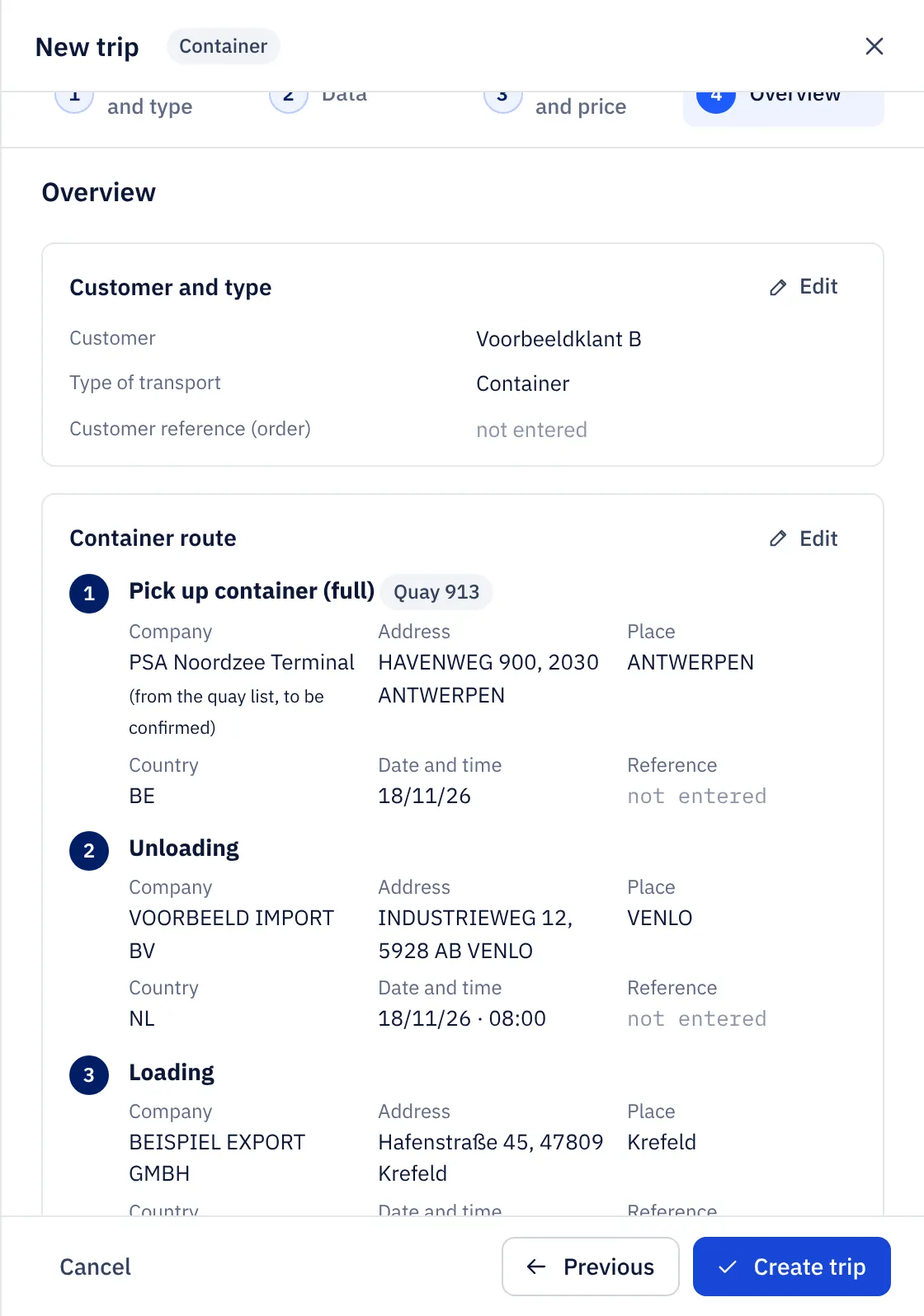
The overview shows everything per block: Customer and type, Route and stops, Cargo, Assignment and price and for a container also the container details. Empty fields show as niet ingevuld (not filled in). Warnings are at the top, for example when a stop has no date. Edit next to a block takes you back to that step.
Choose Create trip (or Save for an existing trip). The trip appears in the list and, if it is assigned, in the planning and in the driver's app.
Edit an existing trip#
Edit opens the same wizard in the trip's kind, with all values. Older trips without a kind open as General cargo; all their fields are kept.
Let INTEGALL AI prepare a trip#
With INTEGALL AI you can paste an order with a short instruction, for example Tom does this tomorrow. INTEGALL AI prepares the trip; you check and confirm. See INTEGALL AI.