

Trips
The trip list, filters and views, the trip record with documents, costs, tracking and history, and the status of a trip.
Under Trips › All trips you plan, assign and follow every shipment until delivery.
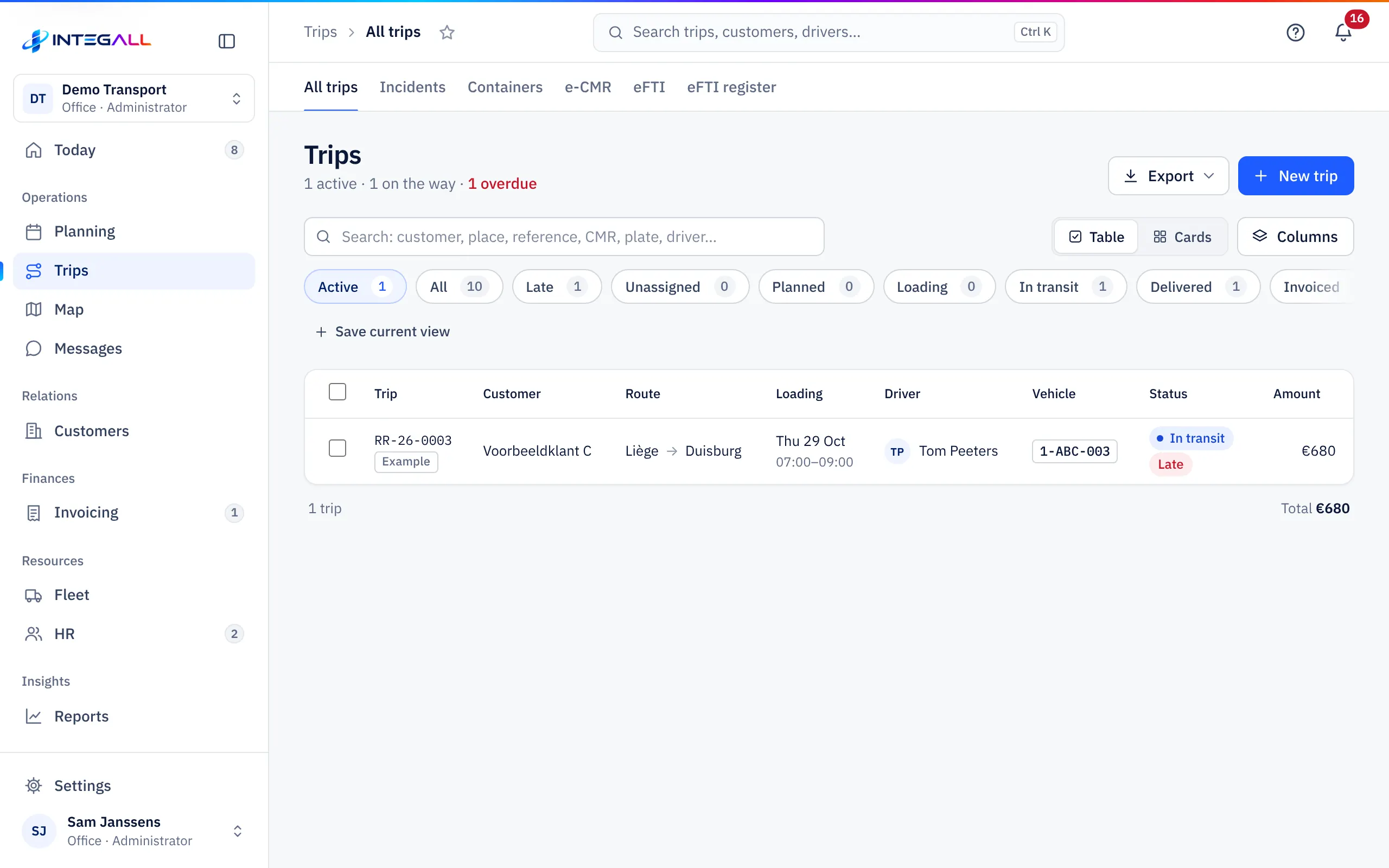
The trip list#
At the top you see how many trips are active, on the road and late. Below:
- Status filters: Active, All, Late, Unassigned, Planned, Loading, In transit, Delivered, Invoiced and Cancelled, each with a count.
- Search: by customer, place, reference, CMR, number plate or driver.
- View: Table or Cards. With Columns you choose the columns.
- Saved views: Save current view saves a combination of filters and columns under your own name.
- Export: Export › CSV or Excel, of the trips you see now.
- Selection: tick trips to export them together (Export selection).
The default columns are Trip, Customer, Route, Loading, Driver, Vehicle, Status and Amount. The total of the shown trips is at the bottom.
Create a trip#
Choose New trip. The trip wizard guides you step by step according to the kind of transport. See New trip with the trip wizard.
The status of a trip#
A trip goes through these statuses:
| Status | Meaning |
|---|---|
| Planned | The trip has been created. |
| Loading | The driver is loading. |
| In transit | The cargo is on the road. |
| Delivered | The cargo has been delivered. |
| Invoiced | There is an invoice for the trip. |
| Cancelled | The trip does not take place. |
The driver sets the status from the app; the office can also do it in the trip record. A trip is Late when the planned delivery has passed and the trip is not delivered yet.
The trip record#
Click a trip to open its record. At the top: the trip number, the status, the route and the customer. The record has six tabs.
Overview#
Distance, cargo and price, the stops (A = loading, B = unloading, with date and time slot), the assignment (driver with phone number, vehicle, trailer), cargo and documents (description, weight, loading metres, pallets, CMR number, temperature), the Instructions for the driver and the Status history. At the bottom, INTEGALL suggests return loads: open requests and trips without a vehicle that load nearby in the 3 days after unloading.
The button with the next status (for example Delivered) moves the trip one step forward. Message to sends the driver a message, Share tracking shares the tracking link.
Documents#
CMR (PDF) creates a paper CMR consignment note. Scan CMR reads in a scanned CMR. Add files yourself: choose the Document type (CMR, Delivery photo, Damage, Loading photo, Receipt / invoice or Other) and drag the file into the box. PDF, JPG or PNG up to 20 MB. Photos and documents from the driver are added here automatically.
e-CMR#
Create an electronic consignment note for the trip with Create e-CMR. See e-CMR.
Costs#
Revenue, Expenses and Margin of the trip, with the cost items (for example fuel and toll) and the expected profit. Fuel and toll without a connection are only allocated after delivery.
Tracking#
With Create tracking link you create a link the customer can use to follow the shipment without signing in. The customer sees the status, the planning and after delivery the proof of delivery with signature, CMR and delivery photos, but no prices or internal notes. Manage the link with Copy link, Open and Revoke link.
History#
The Log shows every status change with its time. With Add you write a note (waiting time, loading dock, damage, customs…). Show changes shows who changed which field.
More actions in the trip record#
Under More actions you find CMR (PDF), Edit, Step back (the previous status), Cancel and Delete. When cancelling, the system asks for a Reason for cancellation.
Incidents, containers, e-CMR and eFTI#
Trips has five more tabs:
- Incidents: failed deliveries and incidents.
- Containers: all containers from your trips with return deadlines.
- e-CMR: all electronic consignment notes.
- eFTI and eFTI register: the eFTI data of your e-CMRs.