

INTEGALL AI
What INTEGALL AI does, how your company turns it on, which data is used, the principle of proposal and confirmation, and an example of a trip from an order.
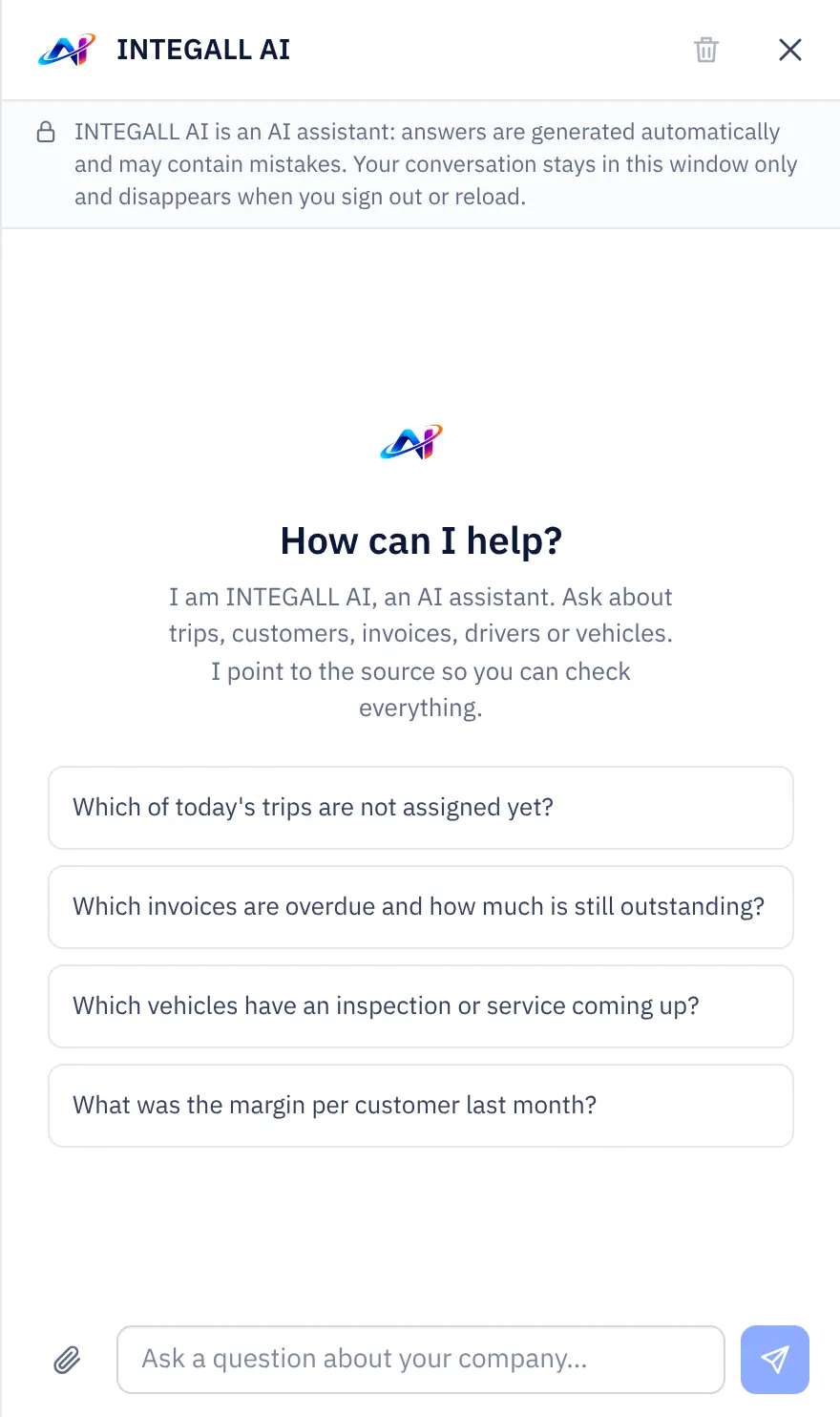
INTEGALL AI is an AI assistant in the company panel. It reads documents, drafts messages, makes planning proposals, summarises reports, answers questions about your data and prepares actions. It never decides or sends anything itself: you always check and confirm.
Turn it on for your company#
INTEGALL AI only works when two conditions are met:
- INTEGALL has made INTEGALL AI available for your company (depending on your plan).
- The owner or an administrator of your company has turned it on, per feature.
How to turn it on:
- Go to SettingsData and privacy, card INTEGALL AI.
- Read what is sent and what is stored (see below).
- Turn on the switch per feature and confirm.
| Feature | What it does |
|---|---|
| Read documents | Reads orders, CMRs and purchase invoices and fills in the form for you. You check and save yourself. |
| Draft messages | Drafts replies to customers, e-mails and quotes. You adjust and send yourself. |
| Planning assistant | Proposes a driver and vehicle for a trip, with the reason. You assign yourself. |
| Summarize reports | Summarises a report's figures with the main points and risks. |
| Assistant | Answers questions about your trips, customers, invoices and fleet, with a reference to the source. |
| Summarise e-Box messages | Summarises an opened official e-Box message, only when you press Summarise (not in every plan). |
You can turn INTEGALL AI off at any time with Switch INTEGALL AI off for the company; this applies immediately to all users of your company. Under Usage this month you see the number of calls and the costs.
Privacy: what happens with your data?#
- What is sent: only what is needed for that one request, for example the document you have read or the data of one trip. Only data of your own company, read with your own permissions.
- Nothing is stored: INTEGALL AI processes your data only for the request. Questions, documents and answers are not stored. INTEGALL only records the number of calls and the costs (metadata).
- The conversation in the window stays only in that window and disappears when you sign out or reload.
- The processing partner is listed among the sub-processors in INTEGALL's privacy statement and data processing agreement (Privacy statement and sub-processors).
The principle: proposal and confirmation#
INTEGALL AI never writes, sends or decides by itself.
- Every result is a proposal, marked as made by INTEGALL AI. Check it before you use it.
- A proposal for an action appears as a card with all fields, with warnings from the panel's own checks (for example a driver on leave or with an expired document, a date in the past, or a driving time that is too long).
- You choose Confirm, Edit or Cancel.
- Only after Confirm does the panel carry out the action, with your own permissions and through the same buttons and forms as when you do it yourself. Numbering, the four-eyes principle, log and rules apply as usual.
- Actions you cannot reverse (an e-mail or message to a customer, finalising or sending an invoice, sending a quote, a reminder, cancelling a trip) ask for a second confirmation.
- Where the panel allows it, you can then Undo, for example delete a trip or draft invoice just created, or restore the previous assignment.
Actions INTEGALL AI can prepare: create, change, assign or cancel a trip, a note on a trip, a trip from an order, send a quote, create an invoice from trips, finalise, send or mark it as paid, a payment reminder, a message to a customer, and save a document.
The INTEGALL AI window#
Open INTEGALL AI with the button in the top bar or with Ctrl + J (on a Mac ⌘ + J).
- Ask a question in plain language, for example Which invoices are overdue and how much is still open? The answer refers to the source; a click opens the right screen.
- Add an attachment (for example an order as PDF).
- Speak your question, or have a conversation with Talk to INTEGALL AI. Even then INTEGALL AI carries out nothing without your tap on Confirm. The administrator turns voice on or off under Voice.
- Have an answer read aloud with Read aloud.
INTEGALL AI in the screens#
When a feature is on, its button appears in the right place:
- Read with INTEGALL AI in the form of a purchase invoice, a trip and with trip documents: fills in the form, every filled field is marked. You save yourself.
- Draft with INTEGALL AI with customer messages, e-mails and the terms of a quote.
- Suggest with INTEGALL AI in the record of a planned trip; you Assign (assign) yourself.
- Summarize with INTEGALL AI on the report pages.
Example: a trip from an order#
You receive a container order by e-mail. You copy the text into INTEGALL AI and write underneath: Tom does this tomorrow.
*PICK UP TERMINAL*
KAAI:913
HAVENWEG 900
2030 BE ANTWERPEN
*TSTU1234568* 40 HC
*TAR=TQ58KX21*

*LOSSEN ADRES*
VOORBEELD IMPORT BV
INDUSTRIEWEG 12
5928 AB VENLO
18.11.26 08.00

*LADEN ADRES*
BEISPIEL EXPORT GMBH
Hafenstraße 45
47809 Krefeld
REF=EXP-55012
18.11.26 11.00

*DROP OF TERMINAL*
Kaai 913 - Noordkaai Terminal
Havenweg 900
2040 Antwerpen, BE
REF=BKG-889900

Tom does this tomorrow
Fictitious order; all names, addresses and numbers are made up.
INTEGALL AI shows a card Trip from order with the complete trip, like the overview of the trip wizard:
- Type of transport: Container, pattern Import + export.
- Four stops in the right order: Pick up container (full) at quay 913, Unloading in Venlo at 08:00, Loading in Krefeld at 11:00 with reference EXP-55012, Drop container (full) at quay 913 with reference BKG-889900.
- Container number TSTU1234568 with a correct check digit, 40 HC, TAR code TQ58KX21.
- The terminal mentioned only as a quay number gets a name from the quay list, marked as to be confirmed.
- Driver: Tom, recognised by his name or nickname.
- What is not in the order (seal, vessel, price…) is shown as not in the order. INTEGALL AI makes nothing up: where the proposal differed from the text of the order, the text of the order was used.
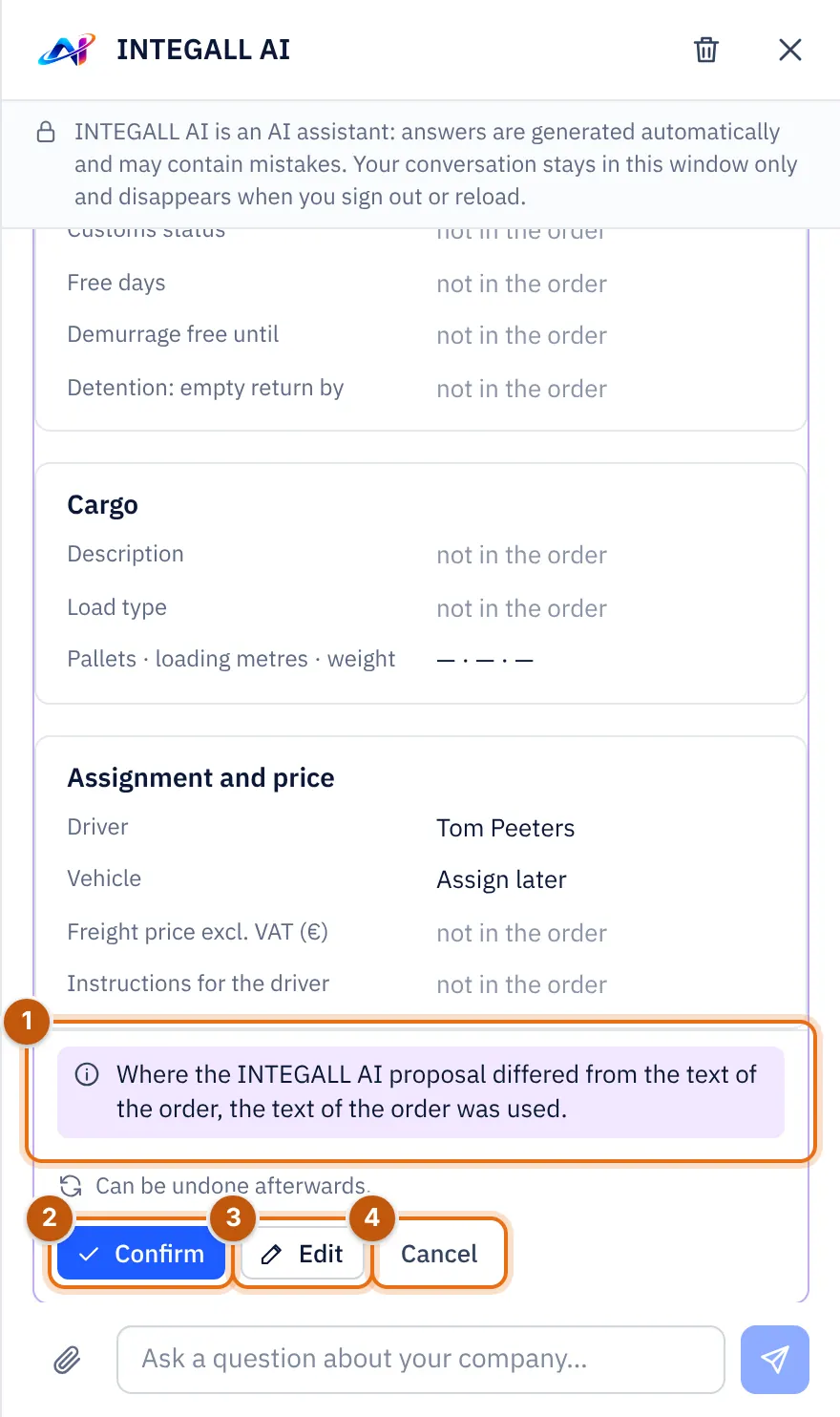
- Where the proposal differed from the text of the order, the text of the order was used.
- Confirm.
- Edit.
- Cancel.
Then you choose:
- Confirm: the trip is created through the trip wizard, just as if you had filled it in yourself. It can still be undone afterwards.
- Edit and then Change everything in the trip wizard: the trip wizard opens on the overview with all the order's data. You complete it (for example the price) and create the trip.
- Cancel: nothing happens.