

Planning, recurring trips and return loads
Plan and move trips on the week or day board, see conflicts, proposals for open trips, recurring trips and return loads.
Planning has three tabs: Weekly planning, Recurring trips and Backhaul.
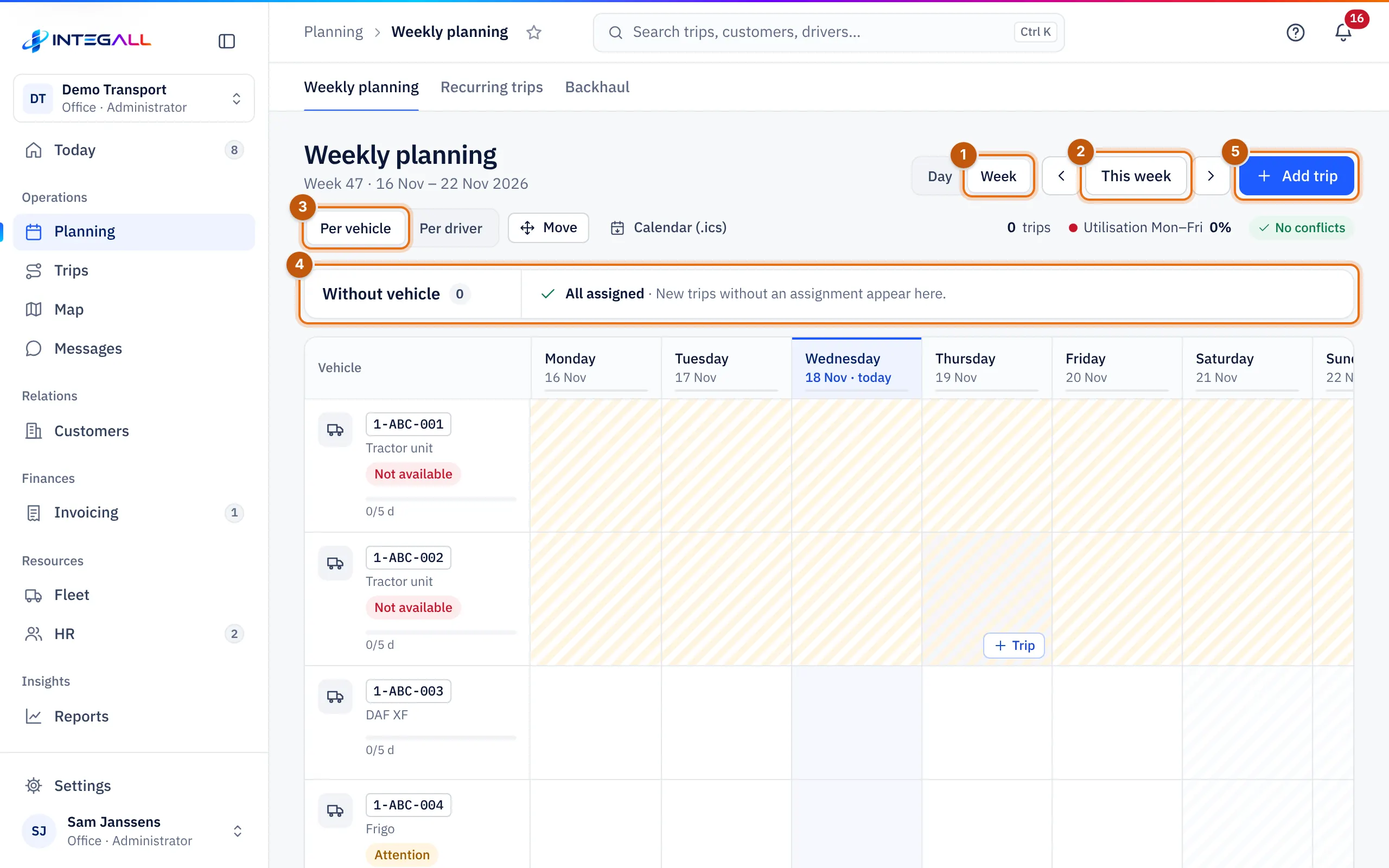
- Day or Week: a day board or a week board.
- This week; the arrows next to it go to the previous or next week.
- Per vehicle or Per driver: what each row stands for.
- Without vehicle: the trips of this week that are not assigned yet.
- Add trip.
Week planning#
The planning board shows the trips of the week per vehicle (or per driver).
- Day or Week: a day board or a week board. Browse with Previous week, This week and Next week.
- Per vehicle or Per driver: what each row represents.
- At the top: the number of trips, the Utilisation Mon–Fri (occupancy Monday–Friday) and the Conflicts and warnings.
- The row Without vehicle shows this week's trips that are not assigned yet.
Each vehicle shows its type and, where needed, a label such as Niet inzetbaar (not usable, for example an expired inspection) or Aandacht (attention), plus the number of days used from Monday to Friday.
Colours follow the status (Planned, Loading, In transit, Delivered, Invoiced). Separate markers show Overlapping trips, Leave or absent and Document expired. Public holidays, truck driving bans and traffic disruption on the route are also flagged.
Plan a trip#
- Click Trip in an empty cell: the trip wizard opens with that vehicle (or driver) and that day already filled in.
- Or choose Add trip.
Move or assign a trip#
- Choose Move.
- Drag a trip to another row and day, or use Assign. Dragging a trip to Without vehicle removes the assignment. On a phone, tap the trip and then the new cell.
- Choose Done moving.
Only planned trips can be moved. Right after a move you can choose Undo.
Proposal for open trips#
Proposal for open trips looks for the best candidates for every trip without a driver or vehicle in the next 14 days: available, not on leave, valid documents (ADR if needed), a free vehicle (reefer if needed), the shortest distance to the loading place and an even distribution. Choose Make a proposal, review the proposals and choose Assign per trip, or Assign all safe proposals.
Calendar (.ics)#
Calendar (.ics) downloads the active trips as a calendar file. Open it in Outlook, Google Calendar or Apple Calendar.
Recurring trips#
Recurring trips are trips that come back regularly, every week or every few weeks, with a start and end date.
- Choose Recurring trip.
- Fill in the trip like a normal trip and choose the Repetition (for example Every week) with start and end date.
- Turn on Schedule automatically if INTEGALL should create the trips by itself.
Under Create trips you choose the week and create that week's trips at once. Plan 14 days ahead now creates the trips of the next 14 days right away. Trips that already existed are not created twice.
Return loads#
Backhaul helps avoid empty kilometres. For every truck that unloads in the next 7 days, INTEGALL shows open requests and trips without a vehicle that load close to the unloading place in the 3 days after.
- Deliveries next 7 days, Open loads (requests and trips without vehicle) and With a load within 150 km are at the top.
- Calculate all distances calculates the distances. Distances are straight-line × 1.25 (an estimate).
Trips with a vehicle appear here from 7 days before unloading. The trip record also shows return loads after unloading at the bottom.