

The customer portal
What the customer portal is, how you get access and sign in, and how you set up two-step verification and your team.
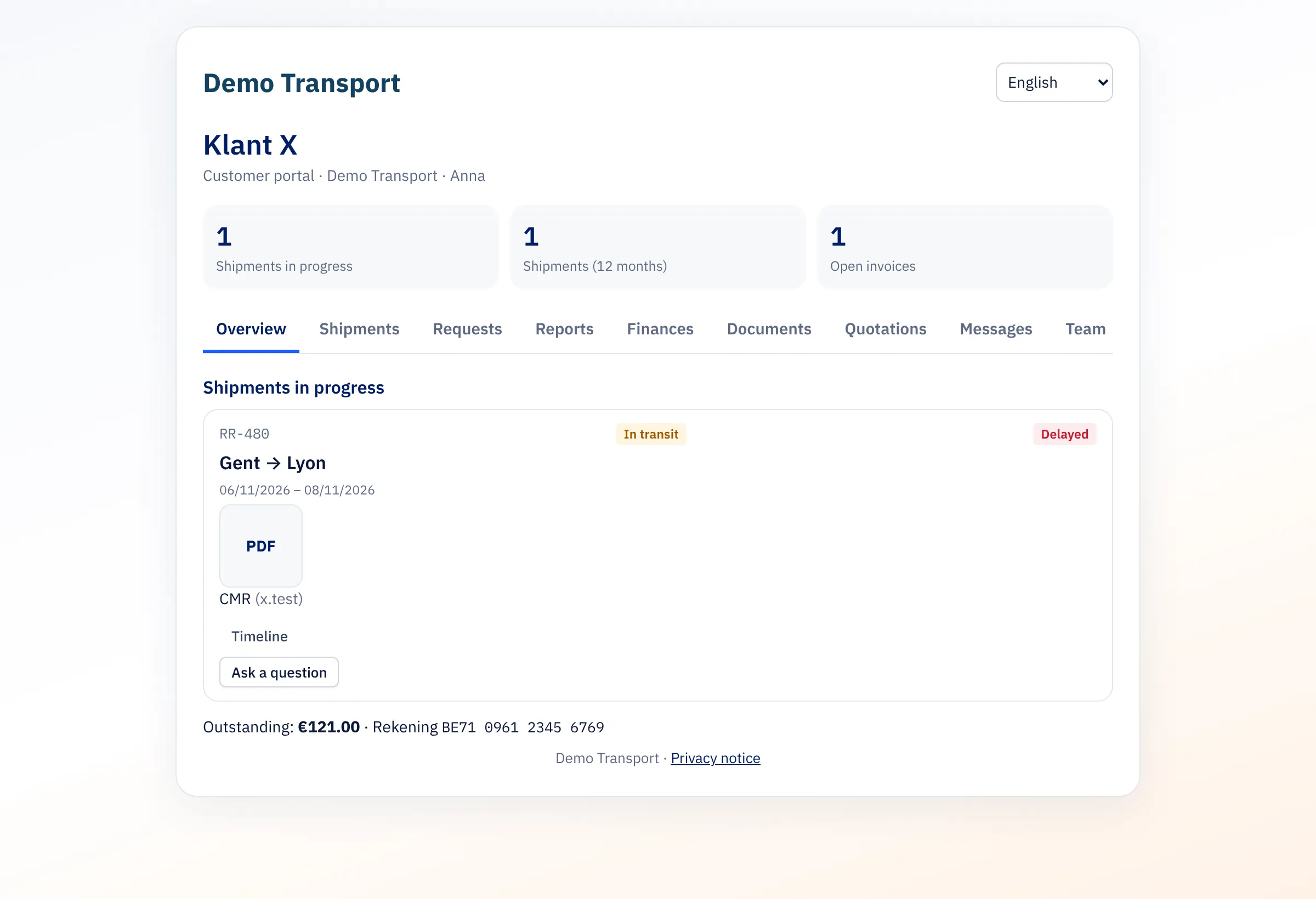
In the customer portal you track your shipments, download CMRs and invoices and request new transports from your carrier. The portal is at customer.integall.com and shows your carrier's house style.
Getting access#
Your carrier gives you access. There are three ways:
- E-mail address and password: the carrier creates a temporary password for you. At your first sign-in you choose your own password.
- A link by e-mail: on the sign-in screen you choose to sign in with a link by e-mail; you receive a sign-in link.
- An invitation: an administrator of your company invites you. An invitation is valid for 7 days and works once.
Your carrier can also create a personal portal link; with it you see your company's shipments, invoices and payment status without signing in.
Sign in#
- Go to customer.integall.com and choose your language at the top right.
- Fill in your E-mail address and Password.
- Choose Log in.
Forgot your password or no password yet? Ask your carrier for a temporary password.
If you work with several carriers on INTEGALL, you manage your password yourself.
The overview#
At the top are your company and the carrier, with Shipments in progress, the number of shipments in the last 12 months and the open invoices. The tabs are Overview, Shipments, Requests, Reports, Finances, Documents, Quotations, Messages, Team, Security, Privacy and Settings. Which tabs you see depends on your permissions.
Two-step verification#
Under Security you turn on two-step verification with Set up two-step verification: scan the QR code with an authenticator app and keep your recovery codes. From then on the portal asks for a code from your phone at every sign-in. If the code does not work, use one of your recovery codes.
A carrier can make two-step verification mandatory for its customer portal. You cannot turn it off then.
Under Security you also change your password and see the Registered devices. With Sign out or Sign out all other devices you sign devices out.
Your team#
As administrator of your company you invite colleagues under Team and choose what they see:
- Under Invite a colleague, fill in the Name, the E-mail address and the Language.
- Choose the Role: User or Administrator.
- Choose the permissions: Shipments, Documents (CMR, photos, attachments), Invoices, Request transports and Reports. An administrator has all permissions, including managing the team.
- Choose Invite.
For a colleague you can choose Edit, Send invitation again or Delete.
Settings and privacy#
Under Settings you choose which e-mails you want to receive: When a shipment departs, On delivery, with CMR and photos, In case of delay and For a new invoice. The carrier can turn some e-mails off for all customers.
Under Privacy you request access to, correction or deletion of your personal data; see Requests and messages.